Send Feedback
Anywhere in BMR, you can send the team a Bug report, Feature request, Question, or Other message — directly from the product. It is the fastest way to get something in front of the BMR team without leaving the app.
Called Send Feedback in BMR Mobile (under Settings) and Report an Issue on the Web (in the header). Both open the same form with the same four categories.
Where to find it
The same form is available on both surfaces, but lives in a slightly different place:
| Platform | Label | Where |
|---|---|---|
Web (app.bettermeetingrooms.com) | Report an Issue | In the header bar, next to the room search and notification bell. Available from any page. |
| BMR Mobile (iPhone / iPad) | Send Feedback | Open Settings and tap Send Feedback. It is not pinned in the header — you reach it from Settings. |
Either entry point opens the same form, and reports land in the same queue with the BMR team.
BMR Mobile
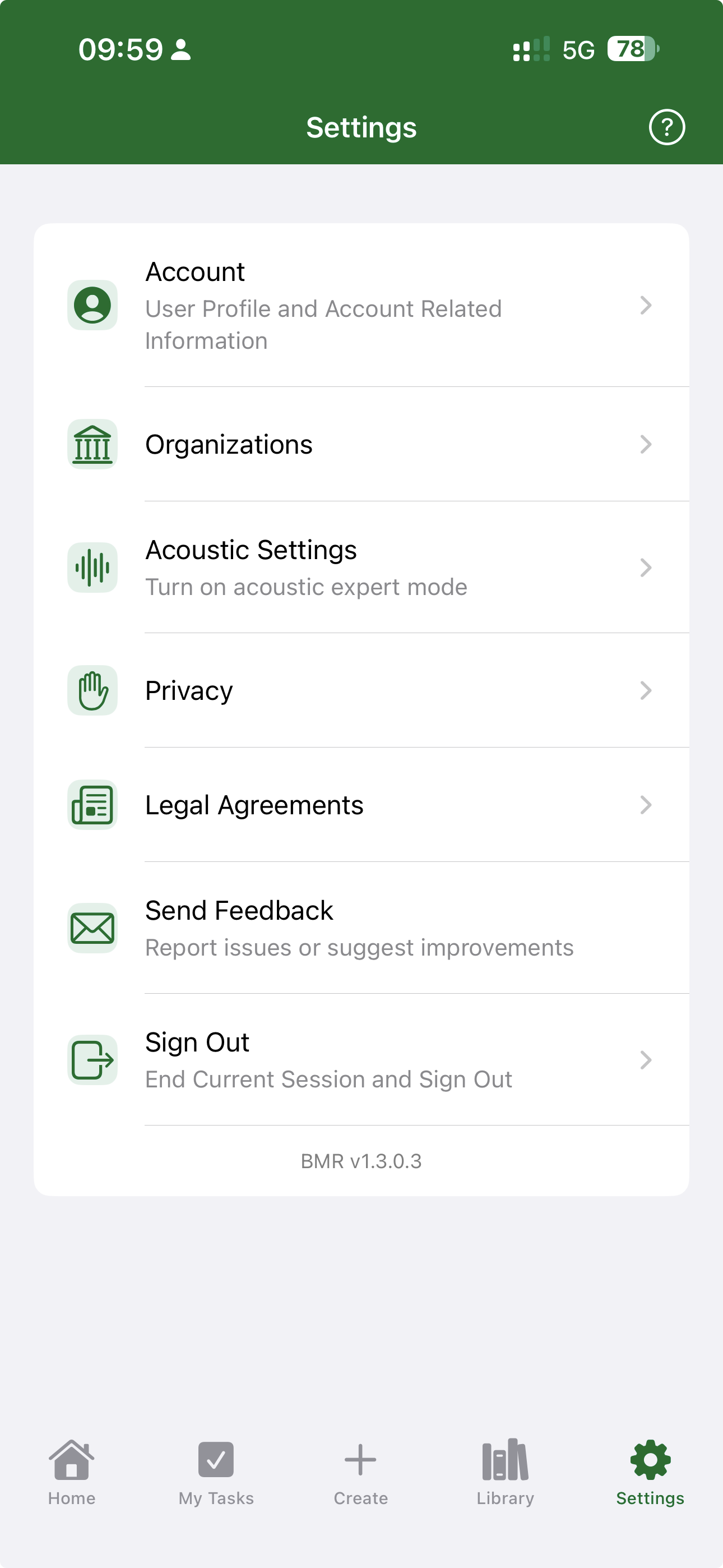
Settings → Send Feedback
Web
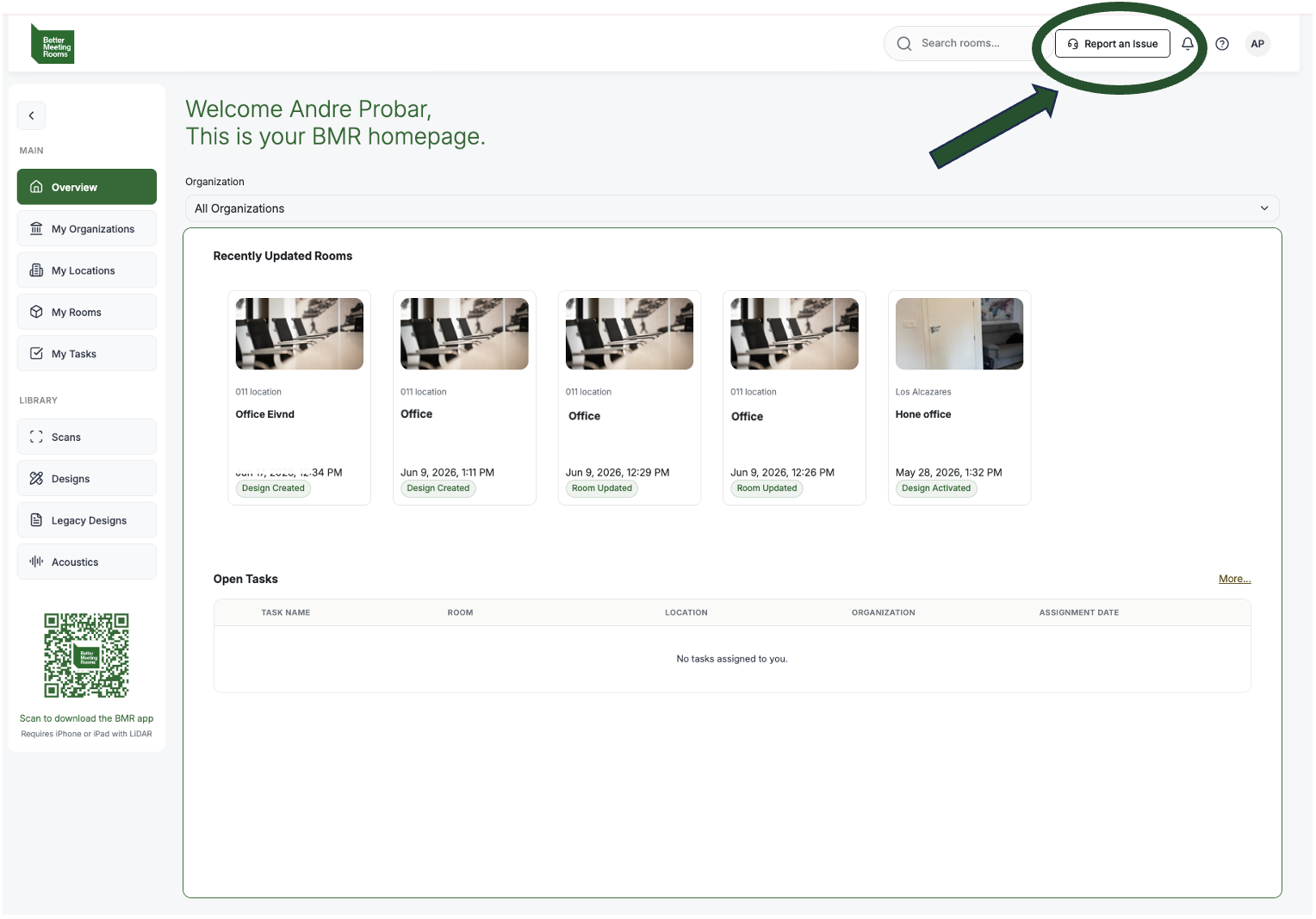
Header → Report an Issue
What you can send
When you open the form you pick one of four categories:
| Category | When to use it |
|---|---|
| Bug | Something is not working the way you expect — a button does nothing, data looks wrong, a flow breaks. |
| Feature Request | Something is missing or could be better. Use this for "It would be great if BMR also did X." |
| Question | A how-to or clarification — "Can BMR do X?" or "How should I handle Y?" |
| Other | Anything that does not fit the categories above. |
Each report needs a short summary (one-line subject) and a longer description. The description is free text — write whatever helps the team understand what happened or what you want.
BMR Mobile
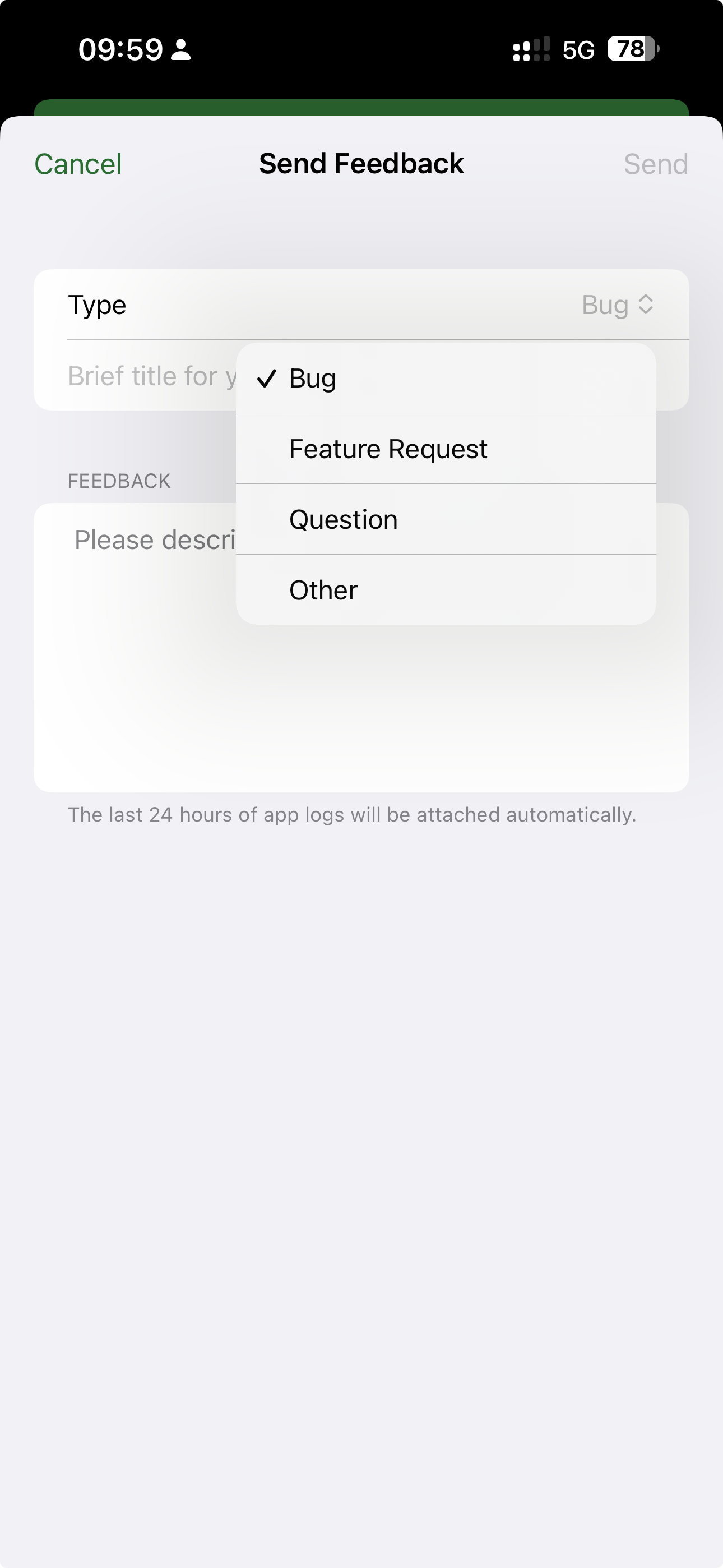
Send Feedback form
Web
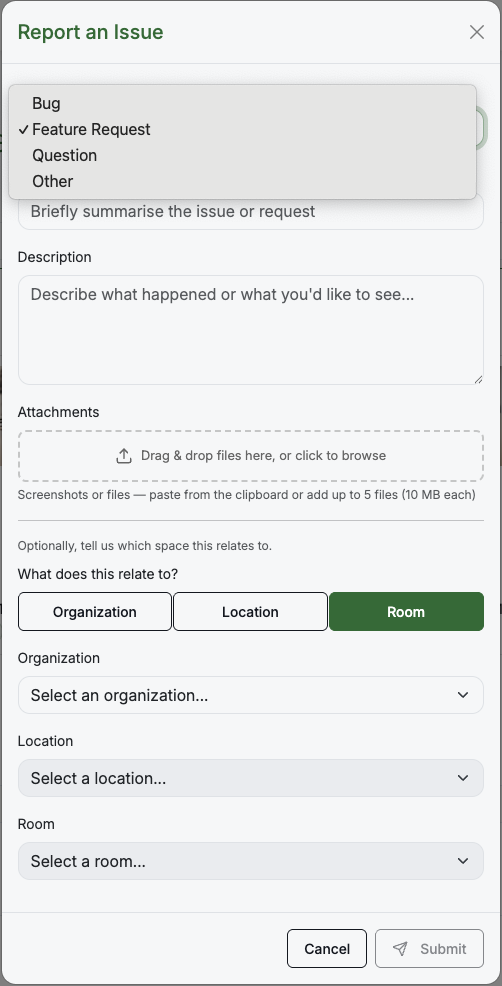
Report an Issue form
Scoping the report
Below the description you can optionally tell us what the report relates to:
- Organization — applies to a whole organisation
- Location — applies to a specific site or building
- Room — applies to a single room
Scoping is optional, but it is very useful for bug reports — it lets the BMR team open the same room or scan that you were looking at when you noticed the issue.
Tips for a useful report
- Be specific. "Acoustic measurement keeps cancelling at step 3 with JBL Xtreme 4" is far easier to act on than "acoustic broken".
- Say what you did and what you expected. A short before/after is usually all the team needs.
- Mention device and version when reporting a Bug. "iPad Pro 12.9" (2022), release 1.2" gives the team something to reproduce against.
- For Feature Requests, describe the underlying need. Knowing why you want a feature helps the team design the right thing, not just the literal request.
- Scope it to the room when relevant — especially for Bug reports tied to specific data.