Discovery Phase
Using just an iPhone, you can perform a guided acoustic measurement grounded in peer-reviewed research — a repeatable, comparable result every time, no specialist equipment needed. The same workflow captures a precise 3D scan and documents key room elements.
The Discovery Phase is the first step in the BETTERMEETINGROOMS lifecycle. The data you capture becomes the foundation for every phase that follows, and is stored in the room's Room Data.
What You Do in Discovery
Three core activities make up the Discovery Phase, in this order:
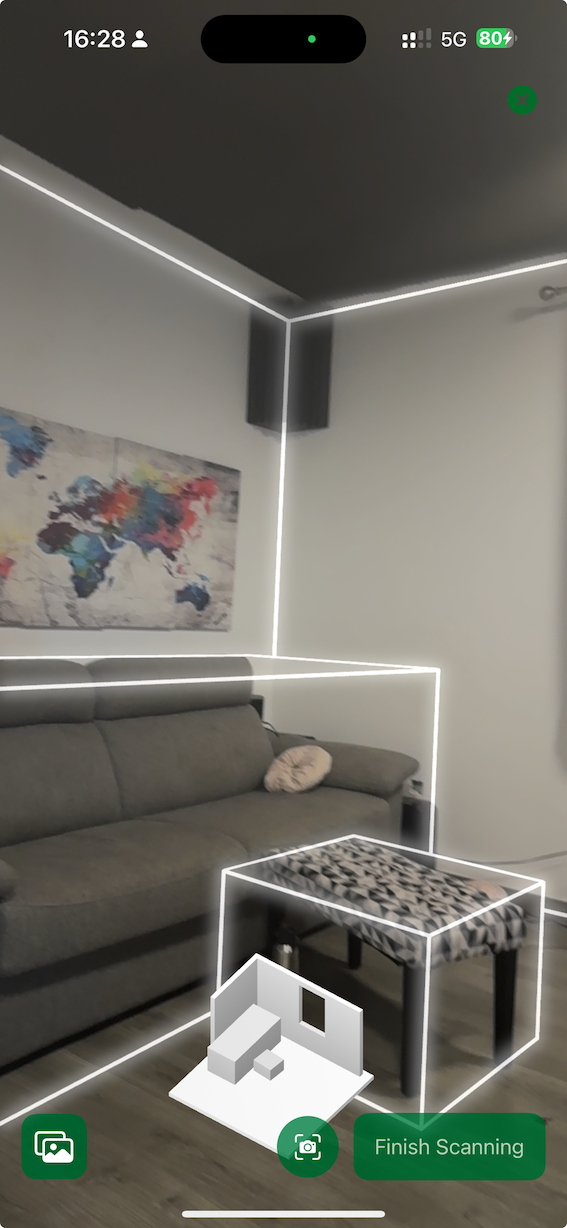
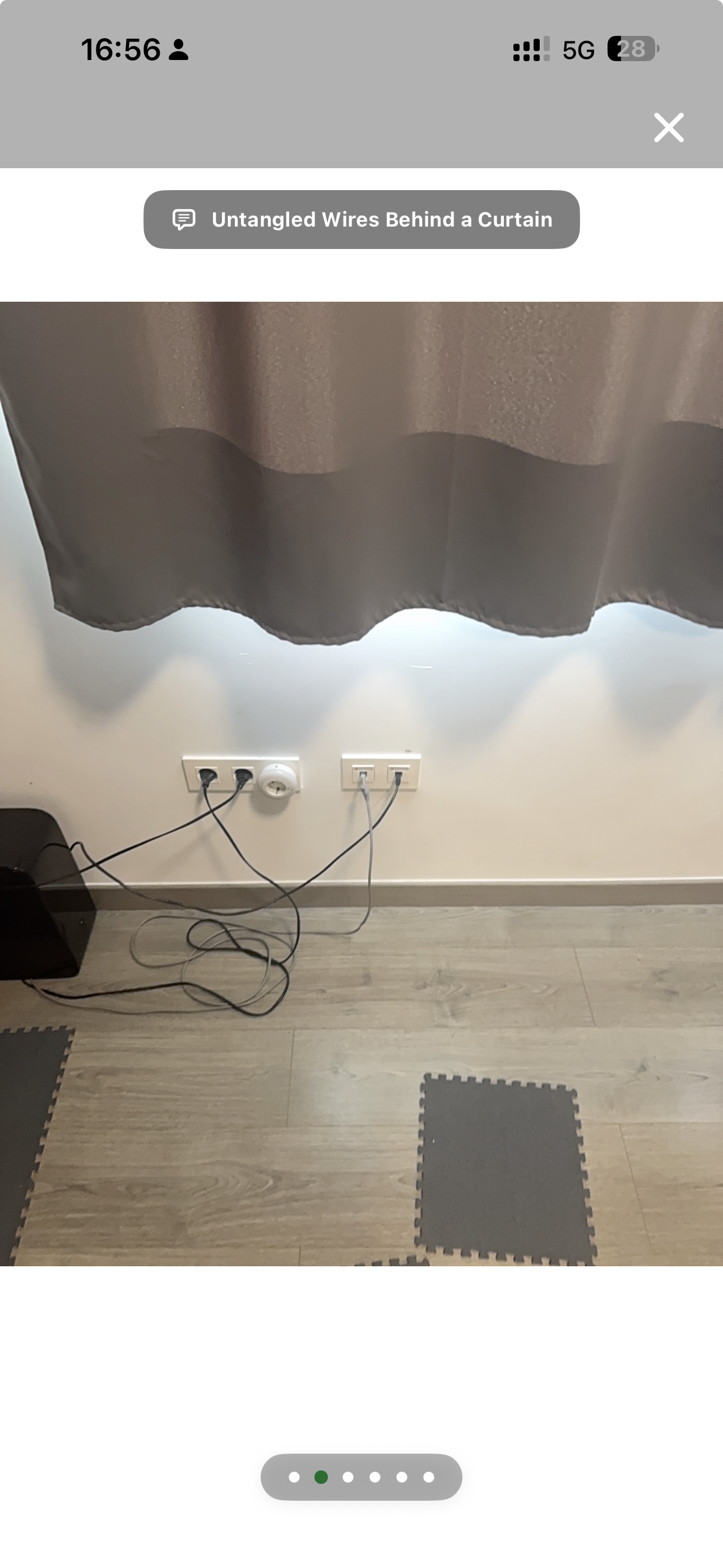
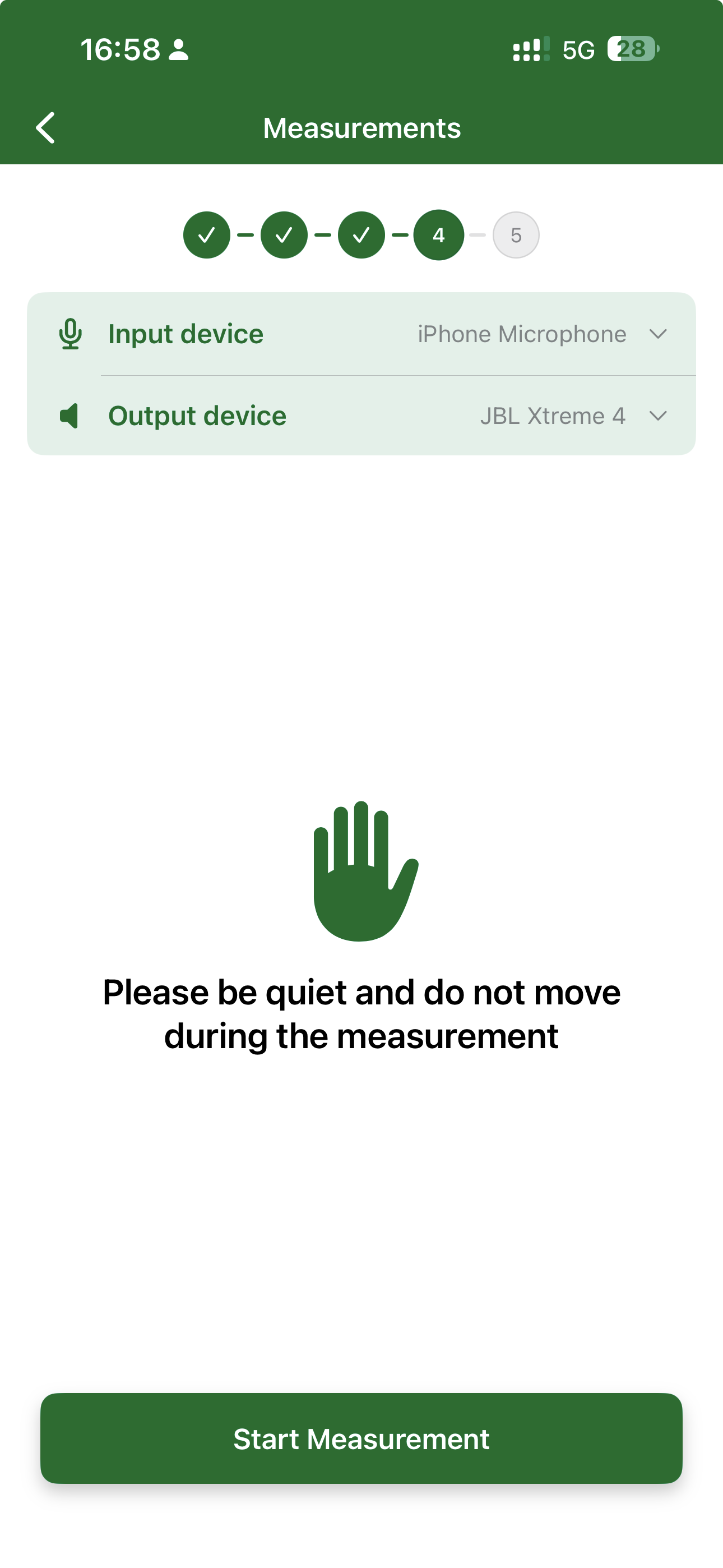
Start with the scan. It produces the 3D model that markers and acoustic measurements are positioned against — capture it first, and do the rest in the same visit. BMR Mobile guides you through the sequence: the room page shows the next step, beginning with "Start here — Scan the room", and ticks each activity off as it is completed.
Room Data
All data collected during Discovery is stored in the Room Data section of the room in the app:
| Data | Source |
|---|---|
| 3D scan geometry | Room Scan |
| Compass orientation | Room Scan |
| Markers & photos | Marker placement |
| Acoustic profile | Acoustic Measurement |
The room's compass orientation is automatically captured during the scan and synced to the backend. This allows the room to be displayed in its true geographic orientation in BMR Studio — useful for referencing walls by direction (e.g. "the screen is on the west wall").
Room Data becomes the foundation used throughout Design and Maintenance.
Prerequisites & Tips
- ✅ iPhone or iPad with LiDAR (iPhone 12 Pro or newer, iPad Pro 2020 or newer), running iOS 26 or newer
- ✅ Good lighting helps the scan — avoid scanning in very dark rooms
- ✅ Scan the room before capturing markers or measuring — without a scan, markers are saved without coordinates and the acoustic measurement runs in its Basic flow
- ✅ Run the acoustic measurement before requesting a design — placement decisions improve significantly
The more complete the Discovery data, the faster and more accurate the Design phase will be.