Release 10 2026 March
This is a major release. BMR Mobile is now available on the Apple App Store, the room home screen has been fully redesigned, and the acoustic measurement flow has been rebuilt from the ground up with multi-position guidance and speaker photo capture.
App Store Availability
BMR Mobile is now distributed through the Apple App Store — no more TestFlight.
Users still require an invitation link from the BMR team to access BMR Mobile after installation. Once installed, BMR Mobile works the same way — the invitation link unlocks the account and organisation access.
This is a major milestone for the platform, making distribution significantly simpler and more reliable for all users.
BMR Mobile
Redesigned Room Home Screen
The room home screen has been completely redesigned. Three top-level tabs now structure all room content:
- Overview — key room info and a summary of all captured data at a glance
- Room Data — all data gathered from the room (scans, markers, acoustic measurements)
- Designs — all design versions associated with the room
What you see on Overview:
- Floor area and AR world map status
- Who added the room and when
- Acoustic MOS score (latest measurement)
- Count of Scans, Markers, and Acoustic measurements — with the date of the last entry and a shortcut to add more
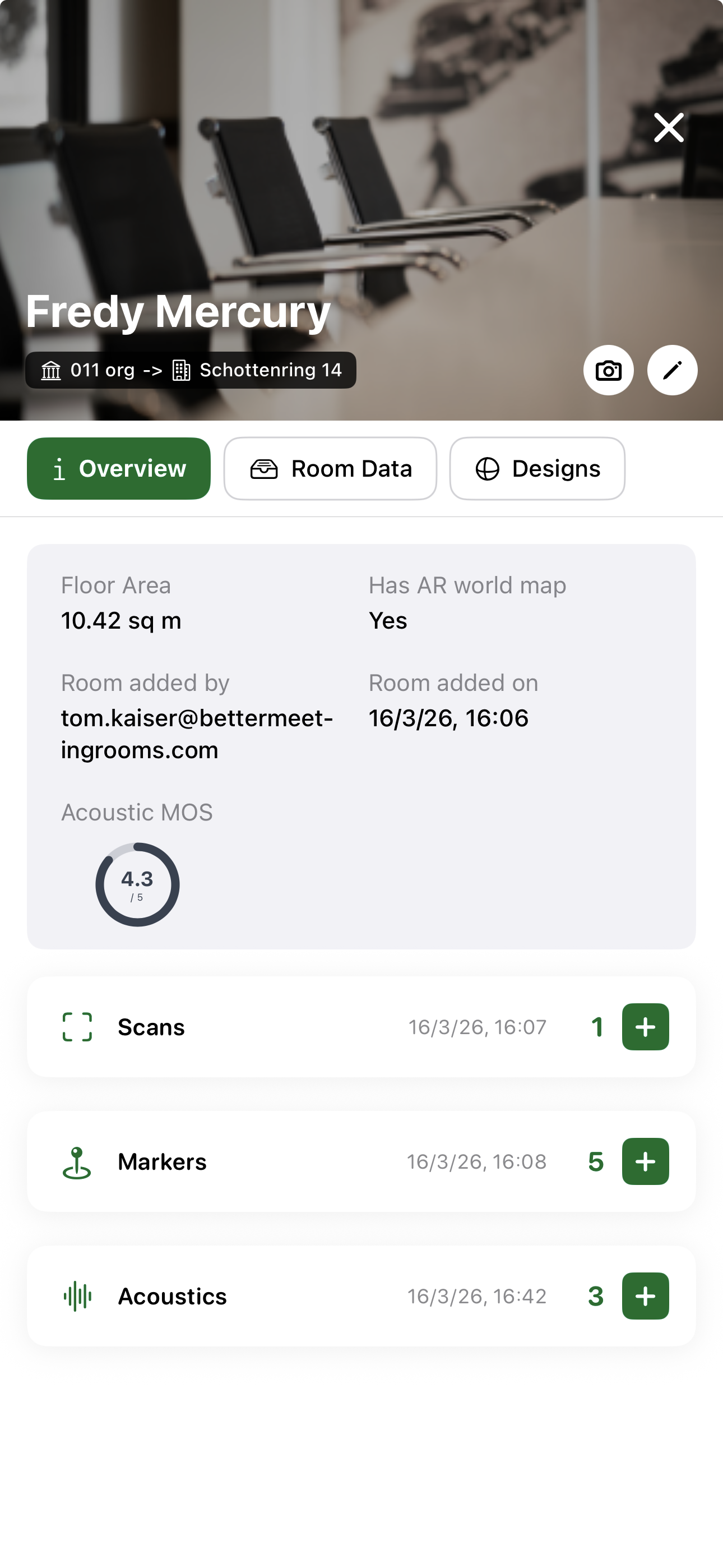
This structure makes it immediately clear what has been captured for a room and what is still missing.
Guided Multi-Position Acoustic Measurement
The acoustic measurement flow has been rebuilt as a fully guided, 5-step process. The biggest change is that measurements are now taken at three positions in the room, giving a significantly more accurate and representative acoustic picture.
Step 1 — Device selection
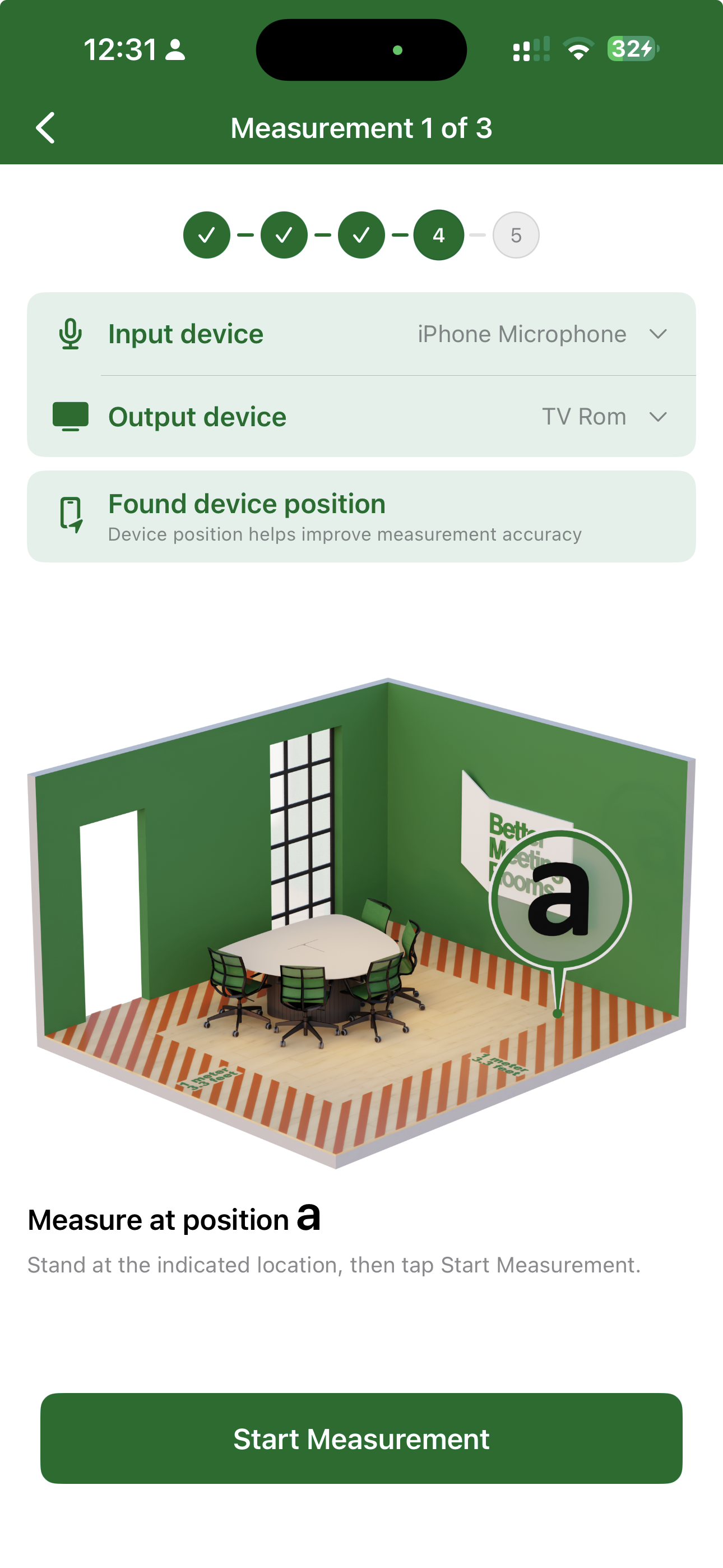
Select the input (microphone) and output (speaker) devices. BMR Mobile confirms the device position has been found.
Step 2 — Room setup & speaker photo
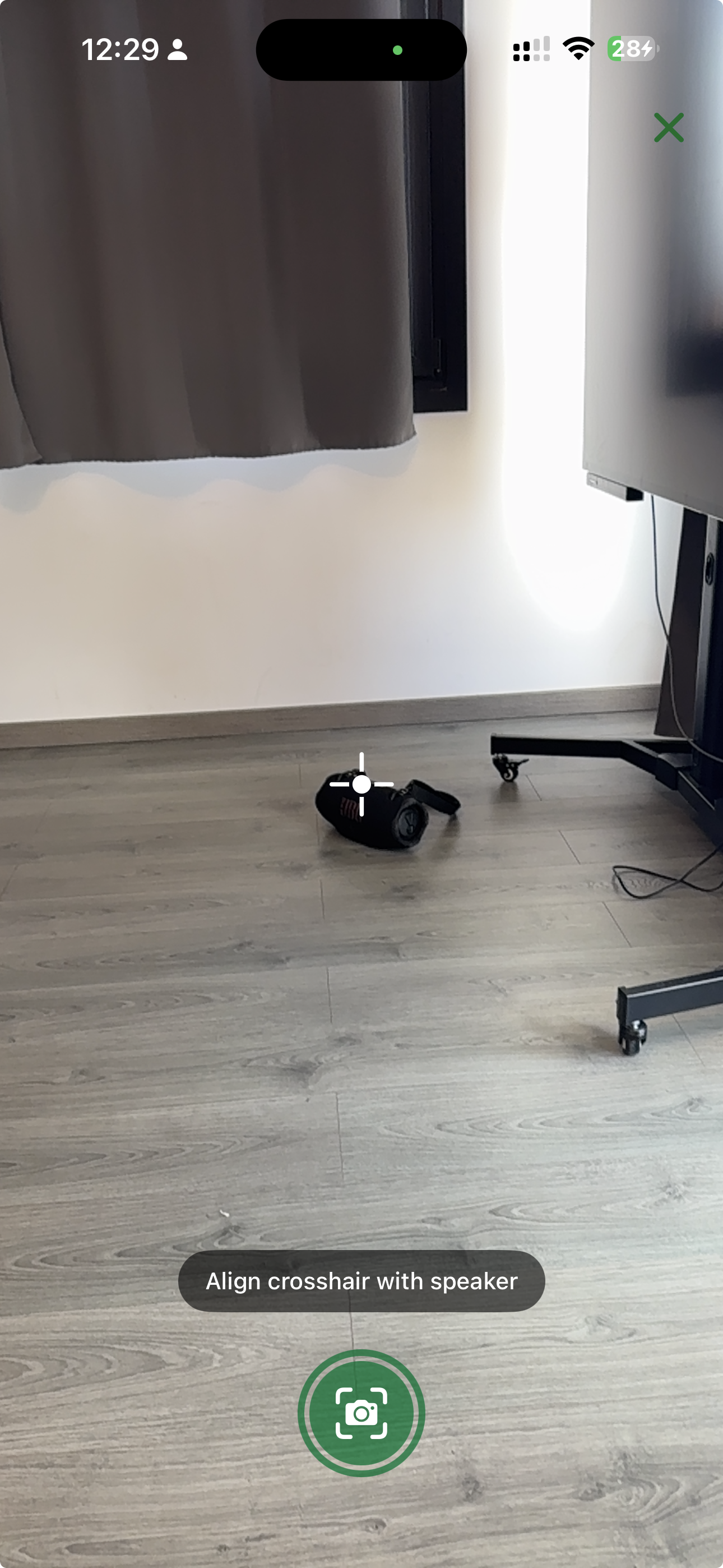
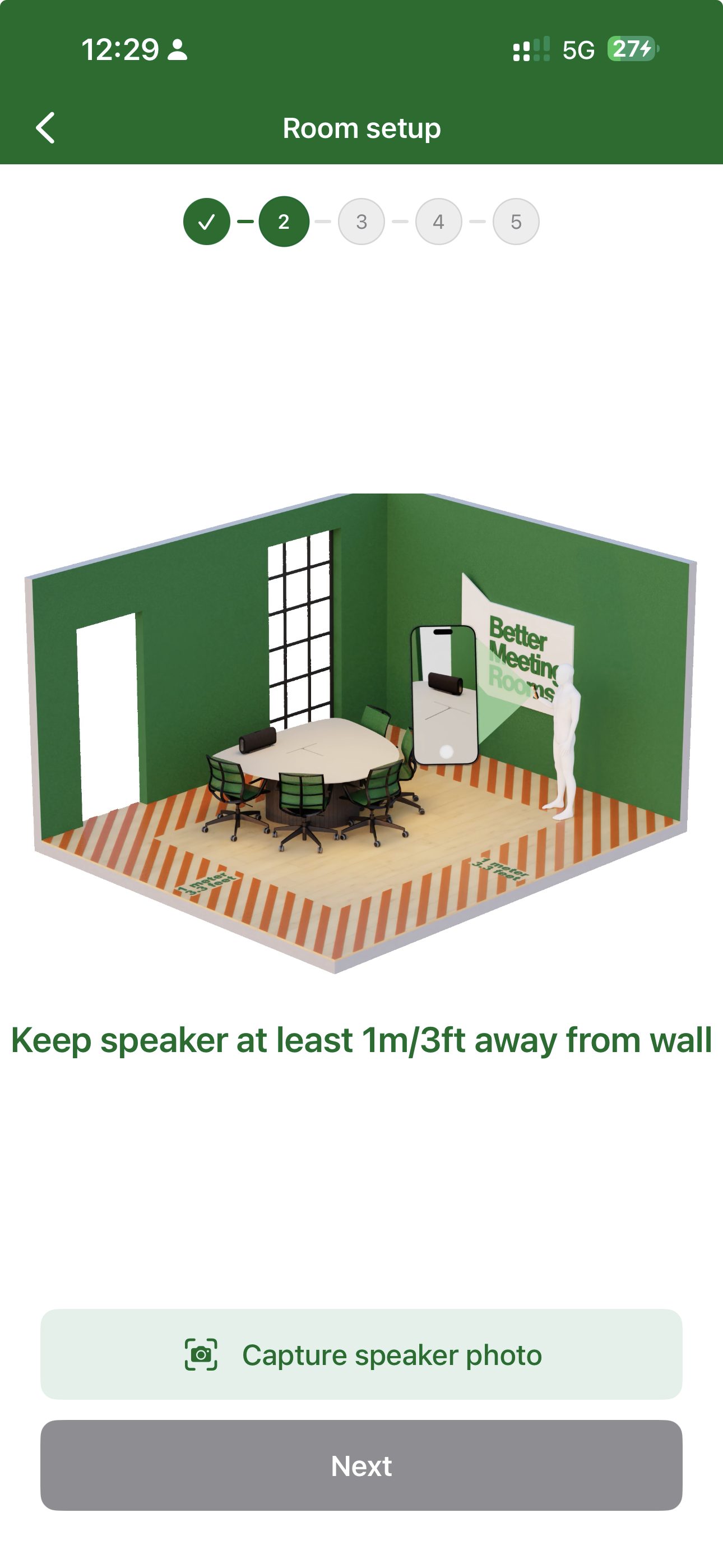
BMR Mobile shows a 3D illustration of the room with placement guidance: keep the speaker at least 1 m / 3 ft away from the wall. You are then prompted to capture a photo of the speaker — align the crosshair with the speaker and tap to capture.
Steps 3 & 4 — Measurements at three positions
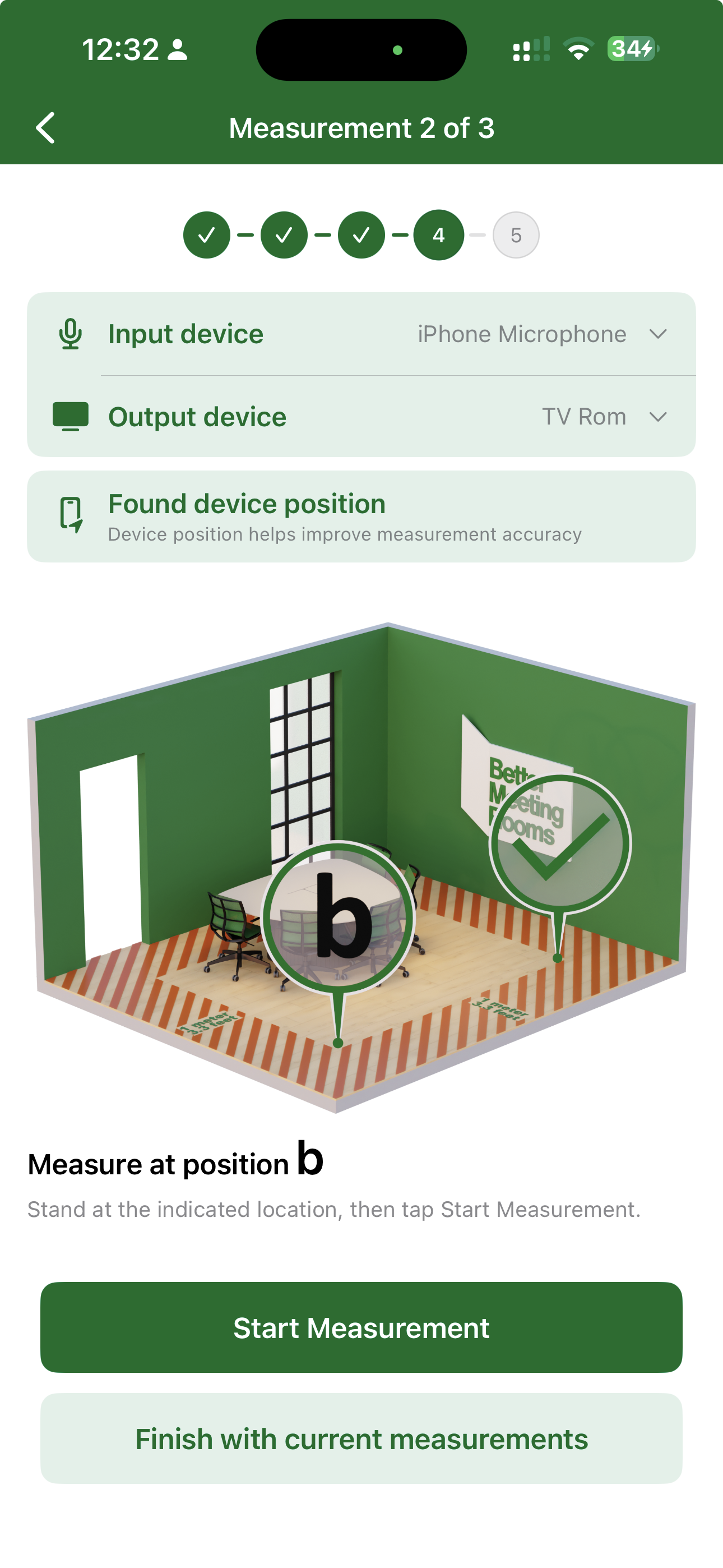
BMR Mobile guides you to measure at positions a, b, and c — each shown on a 3D room illustration. Stand at the indicated position and tap Start Measurement. Progress is tracked as you complete each position. You can choose to finish early with fewer measurements if needed.
Step 5 — Results
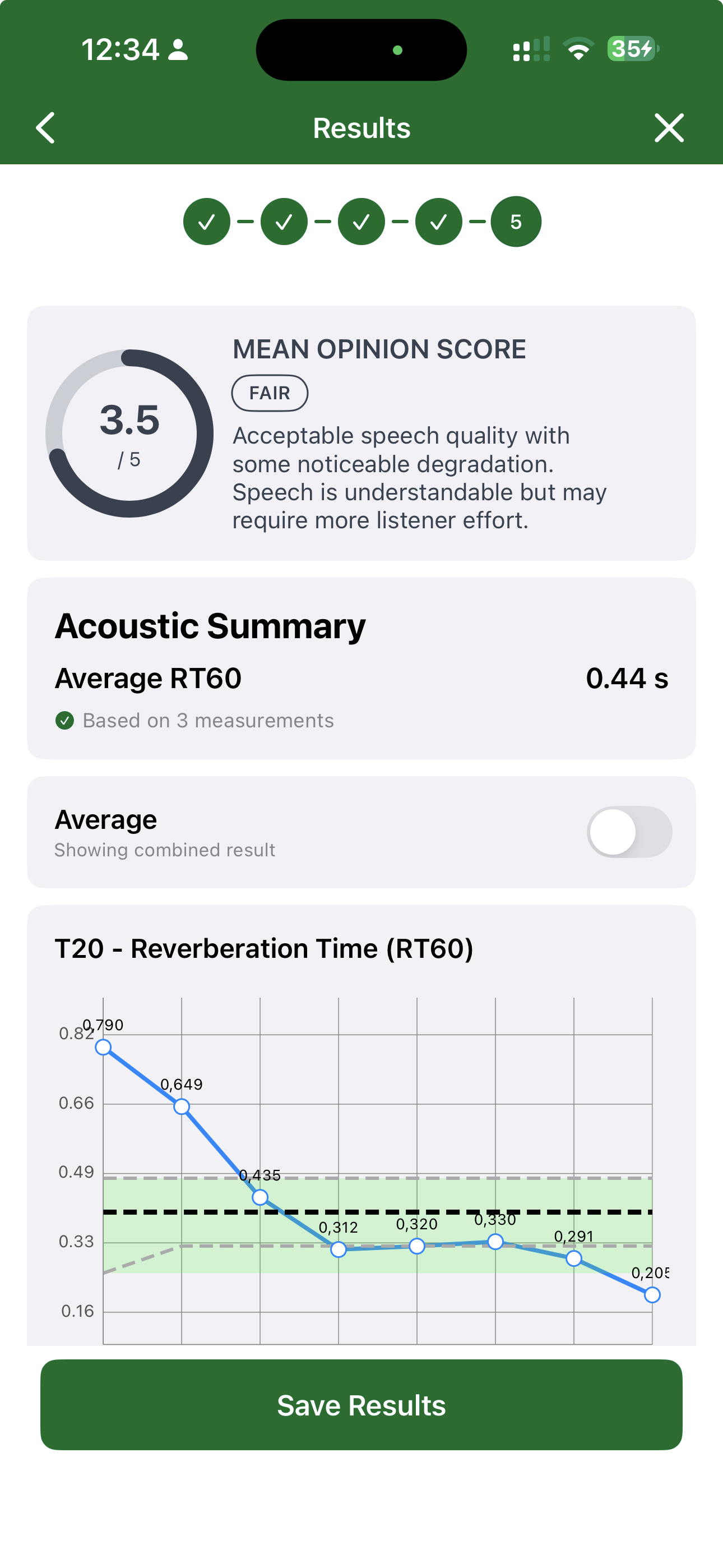
After all measurements are complete, BMR Mobile shows the Mean Opinion Score, average RT60 based on all positions, and a full RT60 graph across frequency bands. Toggle between the combined average and individual measurement positions. Tap Save Results to store in Room Data.
Bug Fixes & UI Improvements
This release includes a number of smaller fixes and visual refinements across BMR Mobile:
- Multiple bug fixes improving stability and reliability across core workflows
- UI improvements and visual polish across several screens for a more consistent experience