Release 2.0 2026 August
The iOS app has been rebuilt and adapted to Apple's Liquid Glass design language, and the MOS score now includes the room's background noise.
This release ships to the existing iOS app, which has been renamed to BMR Mobile Private in the App Store. It is the same app you already use, still available through your existing download link — it is not searchable in the App Store.
Over the coming weeks we will publish a brand-new, publicly searchable app called BMR Mobile. Once it is available it becomes the app to install going forward, and these docs will point you to it. Until then, keep using BMR Mobile Private.
BMR Mobile (iPhone / iPad)
Full Liquid Glass redesign (iOS 26)
The entire app has been rebuilt on the iOS 26 SDK and now adopts Apple's Liquid Glass design language across every screen.
- All screens and flows — navigation bars, tab bars, sheets, alerts, buttons, and controls — adopt the modern Liquid Glass appearance.
- The app feels native and consistent with the rest of iOS 26.
- BETTERMEETINGROOMS brand colors, logo, and design language are preserved within the new look.
- Full support for light and dark mode, plus the iOS accessibility settings Reduce Transparency and Reduce Motion.
- A visual update only — all existing functionality works exactly as before.
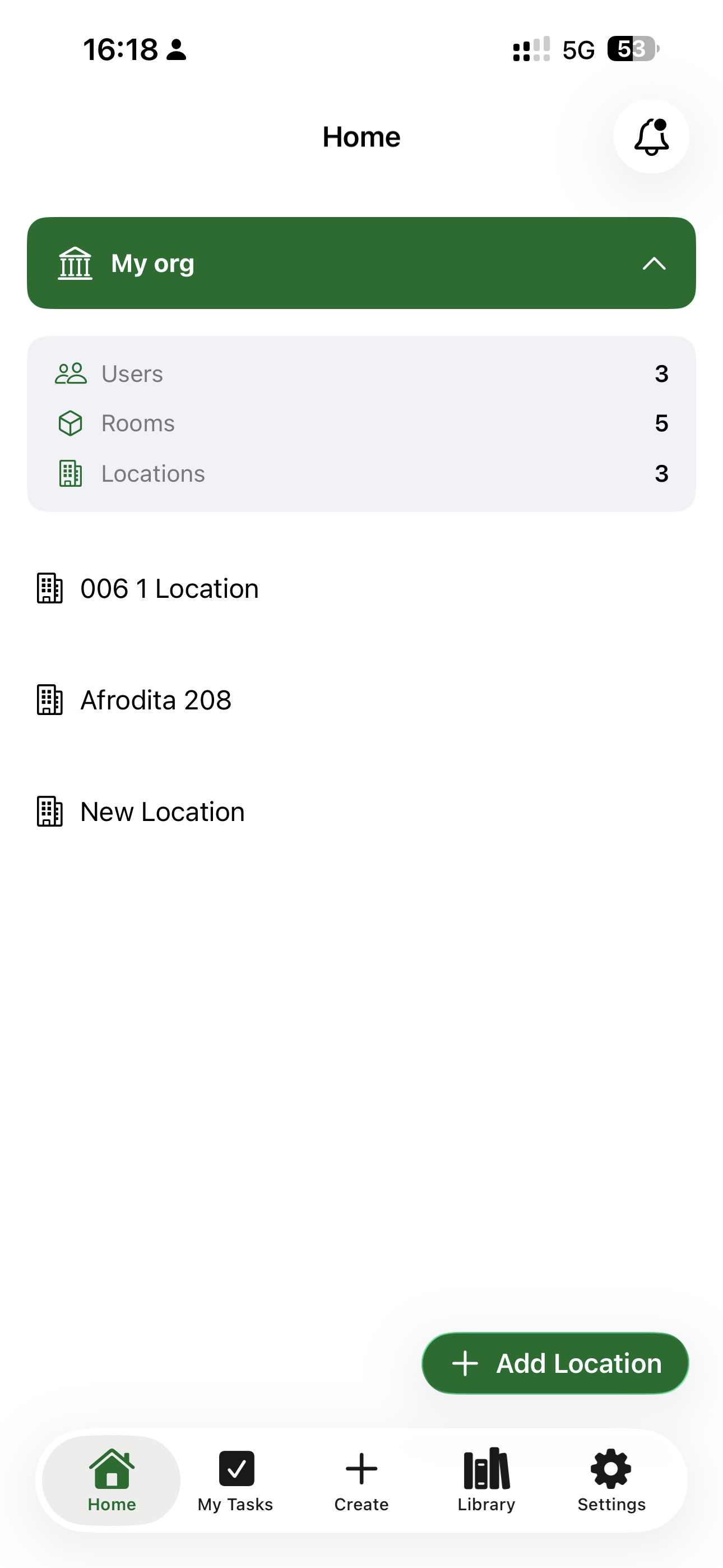
Home screen adapts to your role and access
The home screen now automatically adapts to your role and the organisations, locations, and rooms you belong to:
- Org Admins see the full homepage for their organisation(s).
- Location Admins see only the locations they manage, without organisation-wide overviews.
- Room Managers get a focused home screen with the rooms they have access to.
- New users without any memberships are guided straight into the setup wizard.
- No variant ever exposes organisations, locations, or rooms outside your access.
This ensures every user sees exactly what is relevant to them — nothing more, nothing less.
AR Design rebuilt around a new user flow (BETA)
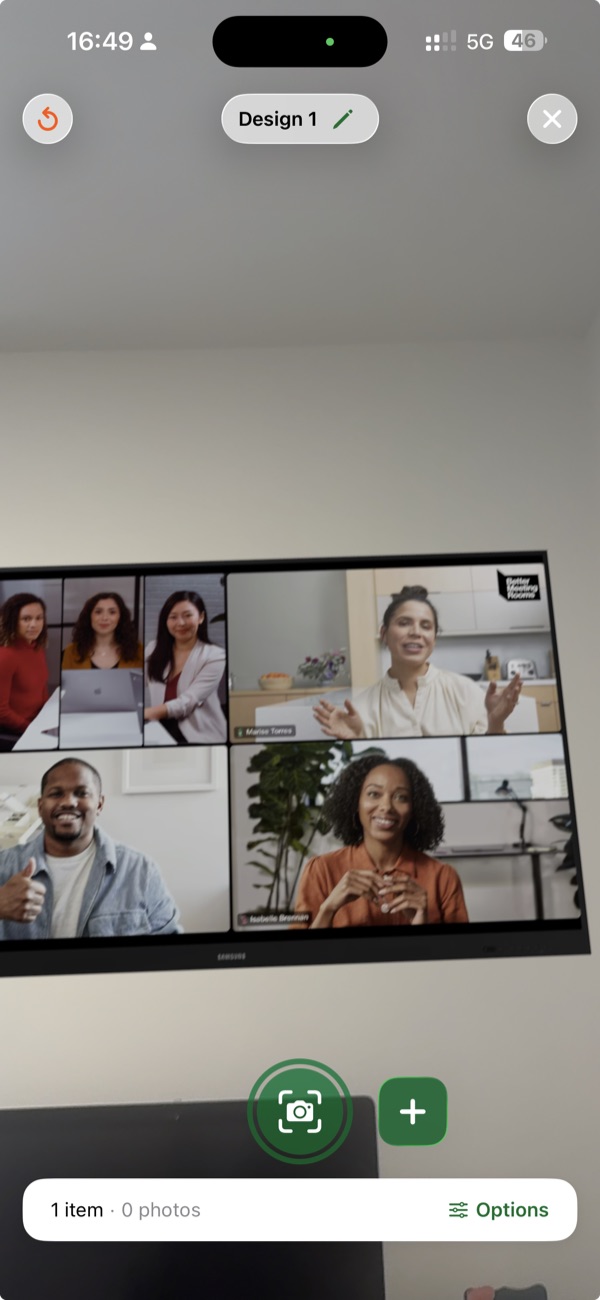
AR Design has been reworked from the ground up to minimize interruptions and let you focus on designing.
AR Design is currently in beta. To get access, contact the BMR team at support@bettermeetingrooms.com.
- Starting a session automatically creates a design — no naming prompt required.
- Placing equipment auto-saves the design; you are never asked to save mid-flow.
- A new design drawer manages the current design, screenshots, and additional designs.
- Screen content for supported devices can be updated directly from the drawer, with changes reflected immediately in the AR scene.
- A single design uploads directly on exit — the review step only appears when you have created multiple designs.
Web Platform
Cabling infrastructure & auto-generated cabling documentation (BMR Studio) (BETA)
Plan the full cabling infrastructure of a room in BMR Studio and generate professional cabling documentation from it — built for installers and AV/IT teams.
Cabling and Cabling Docs are in beta, but available to all users.
Placement in Studio (Cables mode)
- Place floorboxes, ceiling boxes, and conduits alongside existing devices and outlets.
- Boxes snap to their correct surface; outlets can be mounted in boxes and conduits terminate at boxes/outlets.
- Every outlet, box, and conduit gets an auto-numbered label (e.g.
D-04,P-02,FB-1,CB-3), with per-port labels for multi-port outlets and support for manual overrides.
Power outlets can now also be placed on floors and tables — not just walls — so floor boxes and table-mounted outlets are represented accurately and act as connection points in the cabling workflow.
Cabling Docs
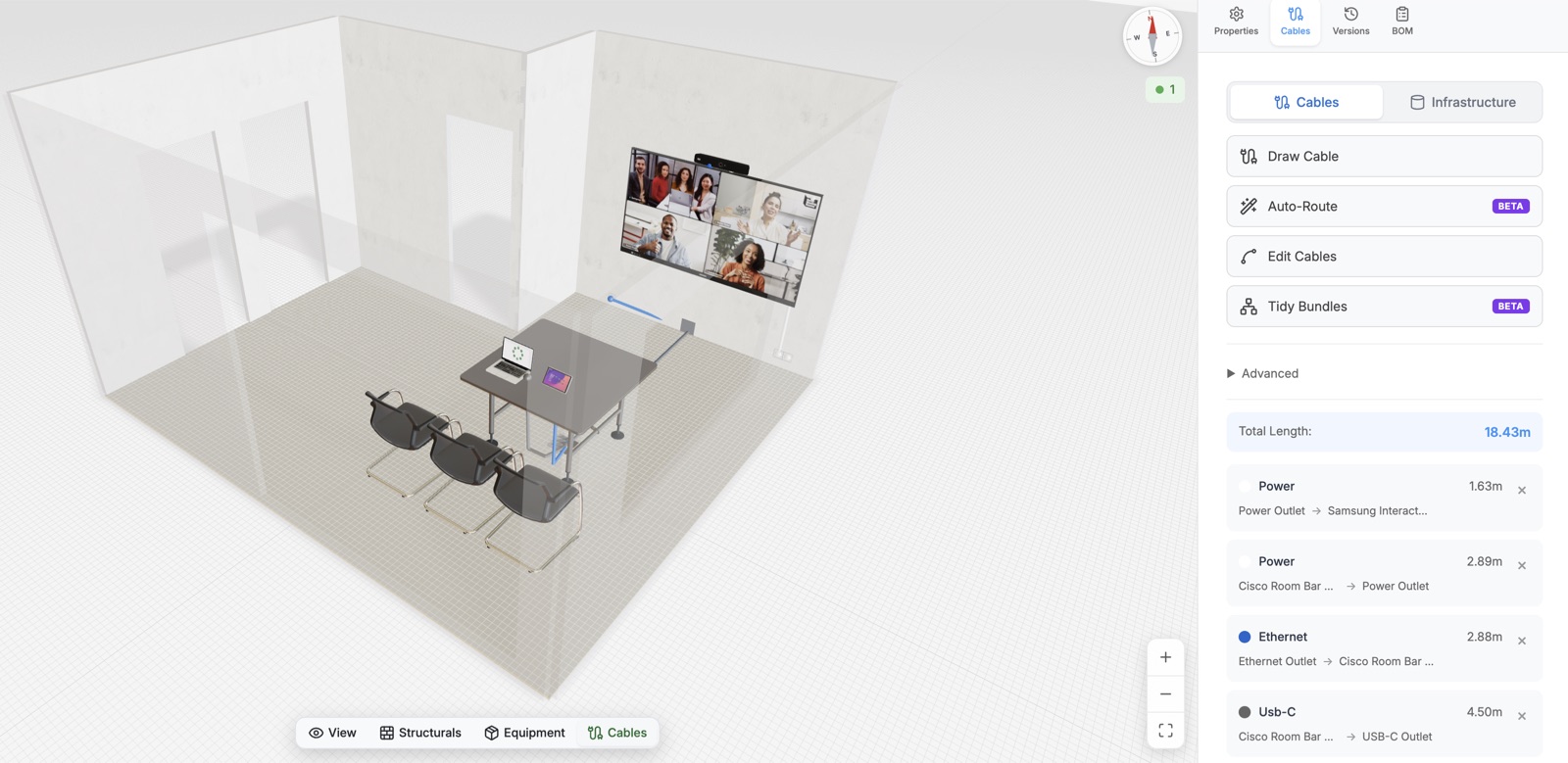
A new Cabling Docs area generates documentation directly from the saved design:
- Placement diagrams — floor plan, wall elevations, and reflected ceiling plan, annotated with labels.
- Cable diagram — a schematic view of what plugs into what, grouped by conduit with fill counts.
- Patching plan — a printable patch schedule, pre-created for every ethernet outlet-port.
All diagrams reuse the labels entered once in Studio, can be viewed in the app, and exported as PDF. Built-in consistency checks warn about unlabelled outlets, duplicate labels, missing patch targets, and over-filled conduits.
Replace detected objects with generic equipment (BMR Studio)
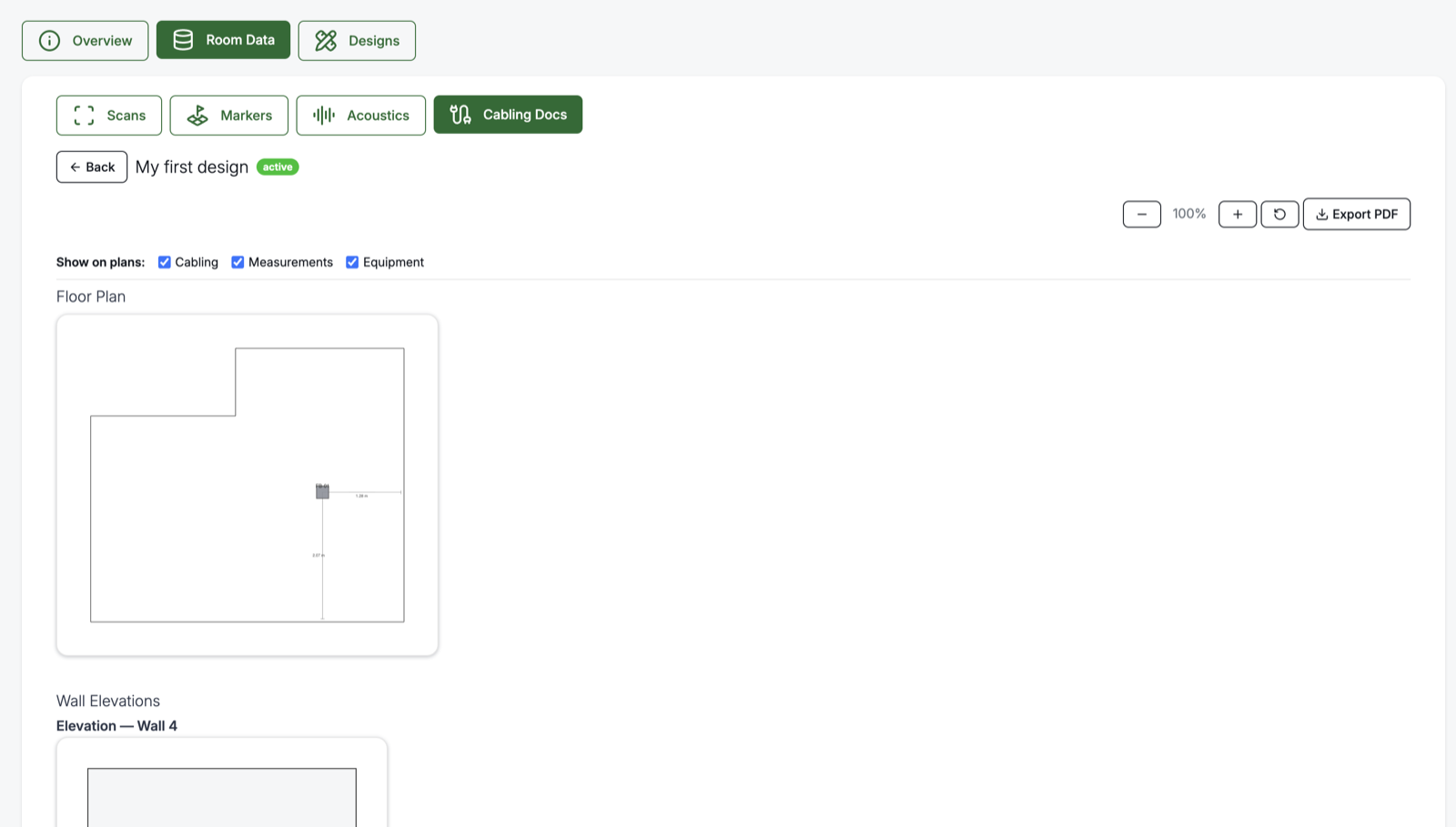
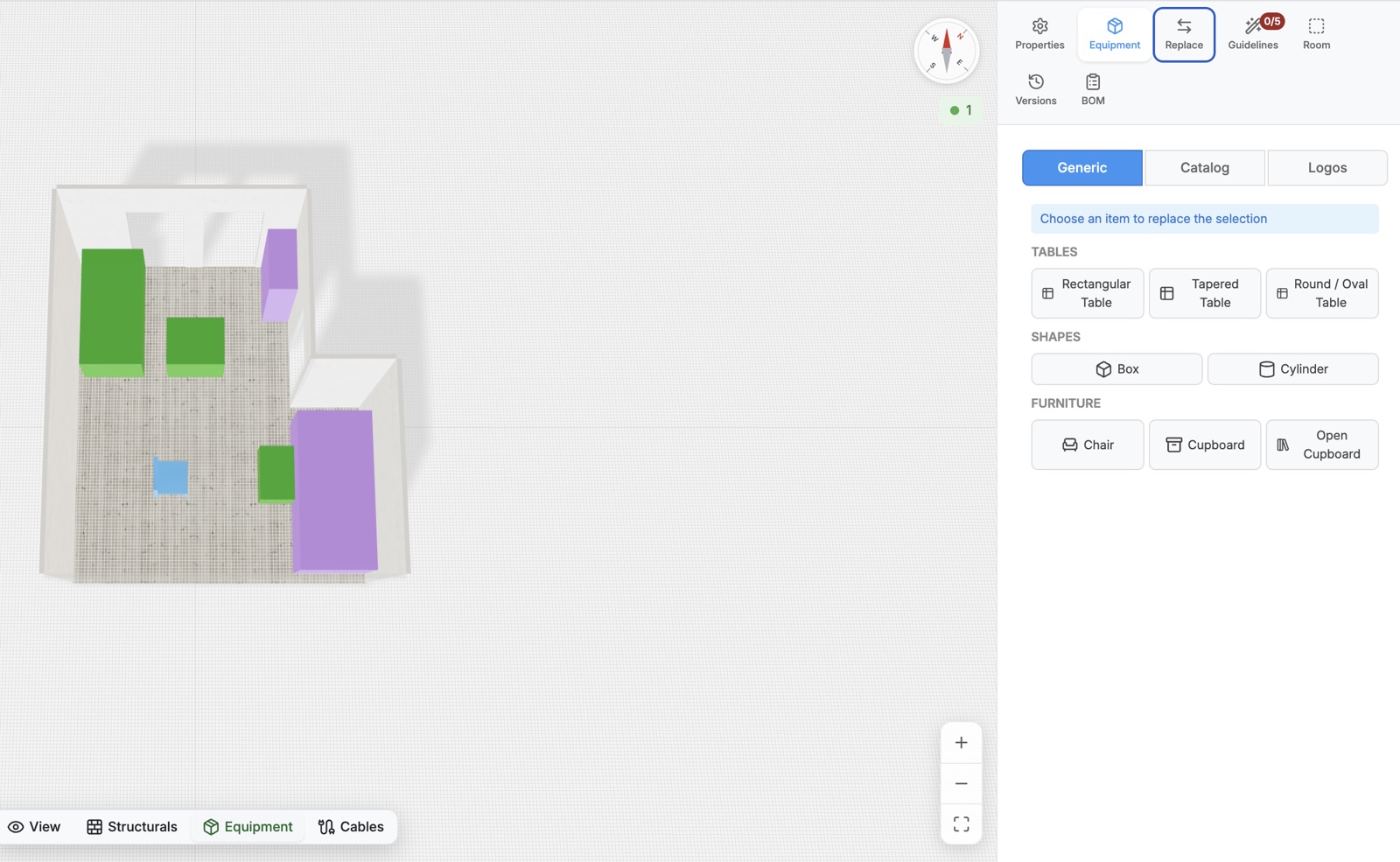
Objects detected in the room scan can now be replaced with generic equipment — no need to delete and recreate them.
- Detected objects ("boxes") can be swapped for generic equipment using the same workflow as catalog equipment.
- The replacement inherits the position, orientation, and placement of the detected object.
- One consistent replacement experience, whether the item comes from the catalog or the generic equipment library.
Auto-save on mode switch (BMR Studio)
Switching between modes in BMR Studio no longer interrupts you with a save confirmation.
- Unsaved changes are saved automatically when you switch modes.
- The "Do you want to save?" pop-up is gone — mode switches happen directly.
- If an auto-save fails (e.g. network error), you are notified and your changes are kept.
- Manual save remains available and unchanged.
Share a design with read-only access
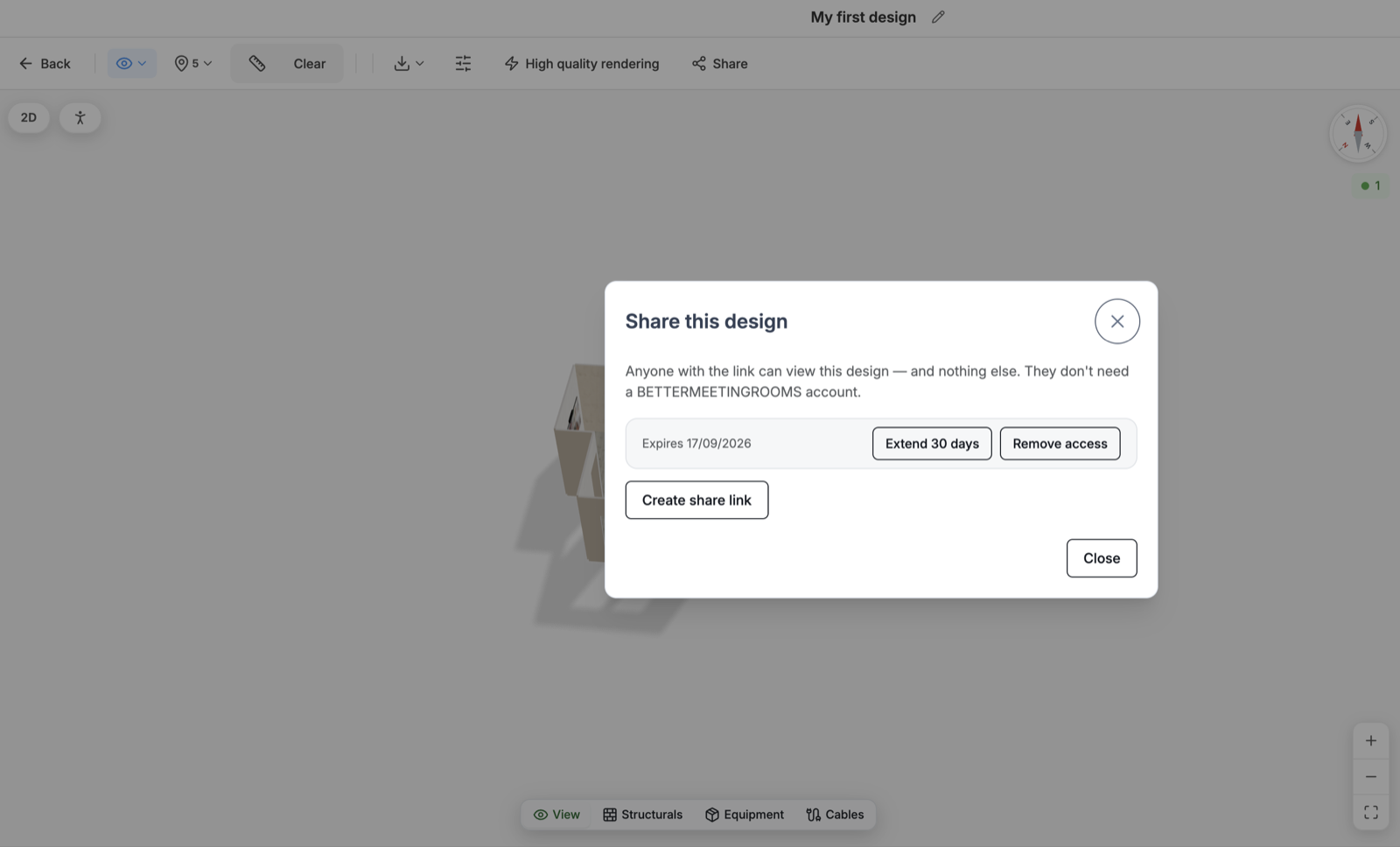
Share an individual design with anyone using a read-only link.
- Share a specific design by link; recipients open it in BMR Studio in View mode.
- They can navigate the 3D design and inspect the inventory list — without being able to make changes.
- Access is limited strictly to the shared design; no broader access to the organization, location, or room is granted.
- The person who shared the design can revoke access at any time.
Acoustics
Choose your acoustic measurement flow — Advanced or Basic
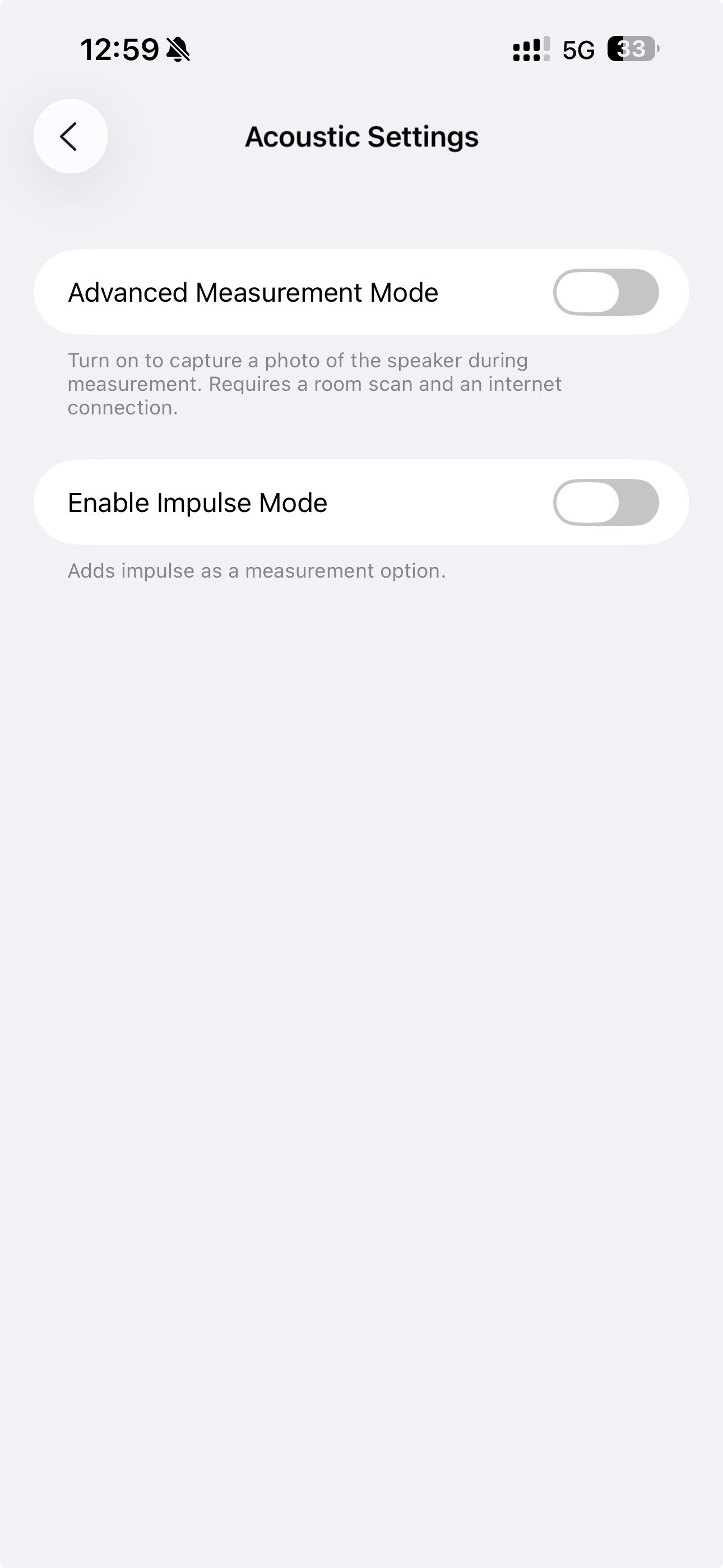
You can now choose how much context BMR captures during an acoustic measurement, under Settings → Acoustic Settings → Advanced Measurement Mode.
- Advanced (recommended) — captures the position of each measurement and of the speaker during the flow, including a photo of the speaker. Requires a room scan and an internet connection.
- Basic — runs the measurement without capturing the measurement or speaker positions.
The position and speaker data captured in Advanced mode is more than record-keeping. In upcoming releases it will be used to further improve the quality of the acoustic measurement, and to enable Auralisation — letting you listen to how a room actually sounds. Measurements you take in Advanced mode today will be ready to take advantage of these features as they arrive.
Background noise now included in the MOS score
The room's background noise is now factored into the MOS score as a penalty, so scores more accurately reflect real-world speech intelligibility.
- Background noise is applied as a Speech-to-Noise Ratio penalty in the MOS calculation — a noisier room lowers the score according to the acoustic model.
- Implemented entirely in the back-end: the iOS app and web platform automatically receive the updated MOS values, with existing measurements remaining fully compatible.
More resilient background-noise measurement
We've improved how the room's background noise is calculated during an acoustic measurement, making it more resilient to transient sounds.
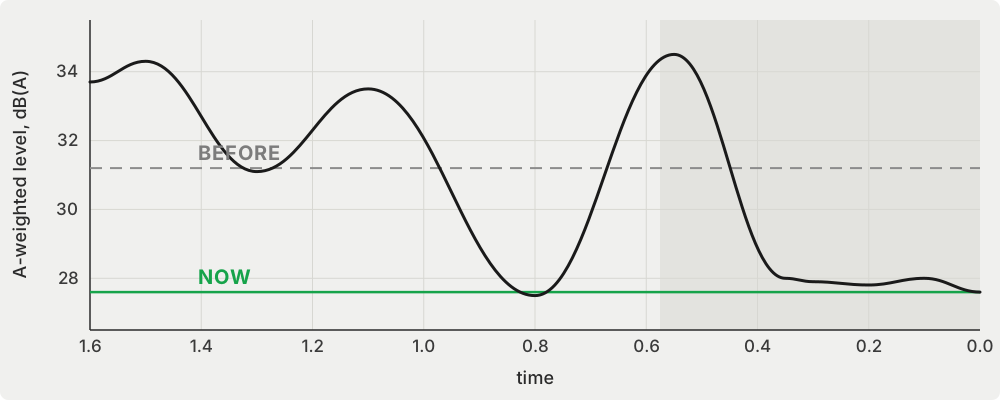
- The measurement now filters out short peaks in the background-noise window — a clap, a cough, or a brief comment during the quiet measurement period is removed rather than inflating the result.
- The result better reflects the room's true, steady-state noise floor.
- This is about removing peaks only. A consistent noise lasting the whole measurement — for example someone talking loudly right next to the microphone throughout, or persistent HVAC — cannot be filtered out and will still affect the result.
The graph below illustrates the effect: BEFORE, brief peaks pulled the measured background noise upward; NOW, those peaks are filtered out and the value tracks the actual noise floor.
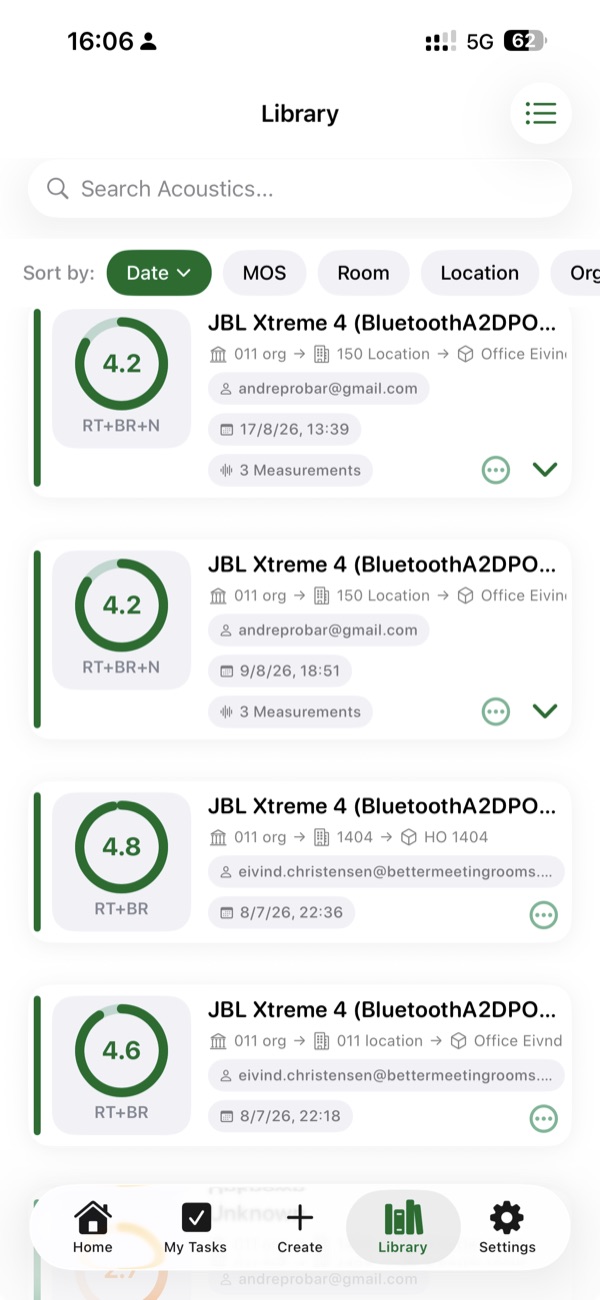
MOS variant shown under the score circle
Because the MOS calculation evolves as we add more acoustic factors, the MOS score circle now shows which variant a measurement was made with:
- RT — Reverberation Time
- RT-BR — Reverberation Time + Bass Ratio
- RT-BR-N — Reverberation Time + Bass Ratio + Background Noise (new in this release)
The variant label is displayed under the score ring, replacing the "out of 5" indication, and is shown consistently in both the Library list and the acoustic measurement view.
Read more about MOS, the variants, and how we measure acoustics in Understanding the MOS Score.
End of Release Notes