Release 2.2 2026 September
Version 2.2 of BMR Mobile makes the app easier to use: a new room recognition flow, the choice between an Advanced and a Basic acoustic measurement, and in-app guidance that shows you what to do — and in which sequence.
BMR Mobile (iPhone / iPad)
New room recognition flow
Room recognition detects which room you are in by matching the camera view against the room's scan. It is what anchors your work to the 3D room:
- AR Design — merges what you do in AR with the scan.
- Markers — positions markers added outside a scan.
- Acoustic measurements — positions the speaker and each measurement.
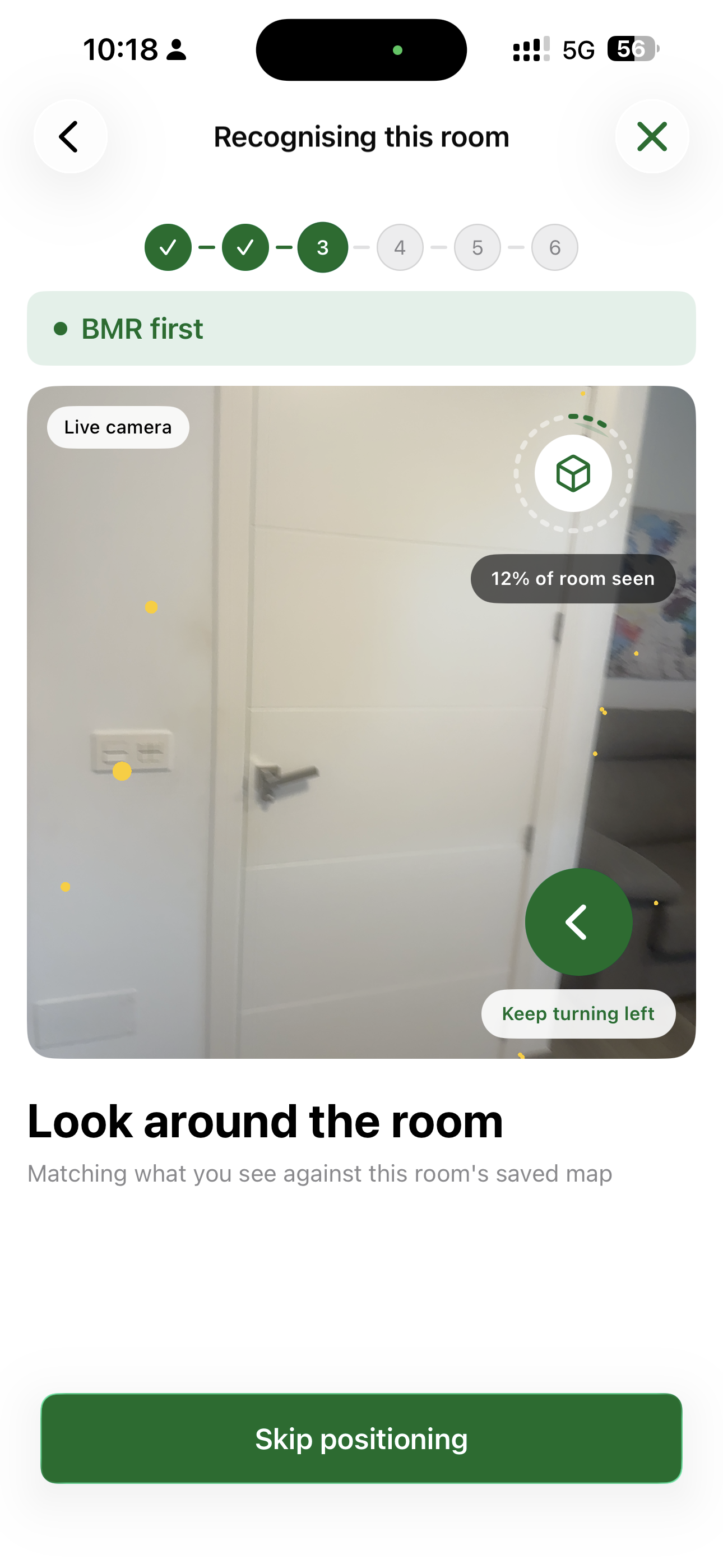
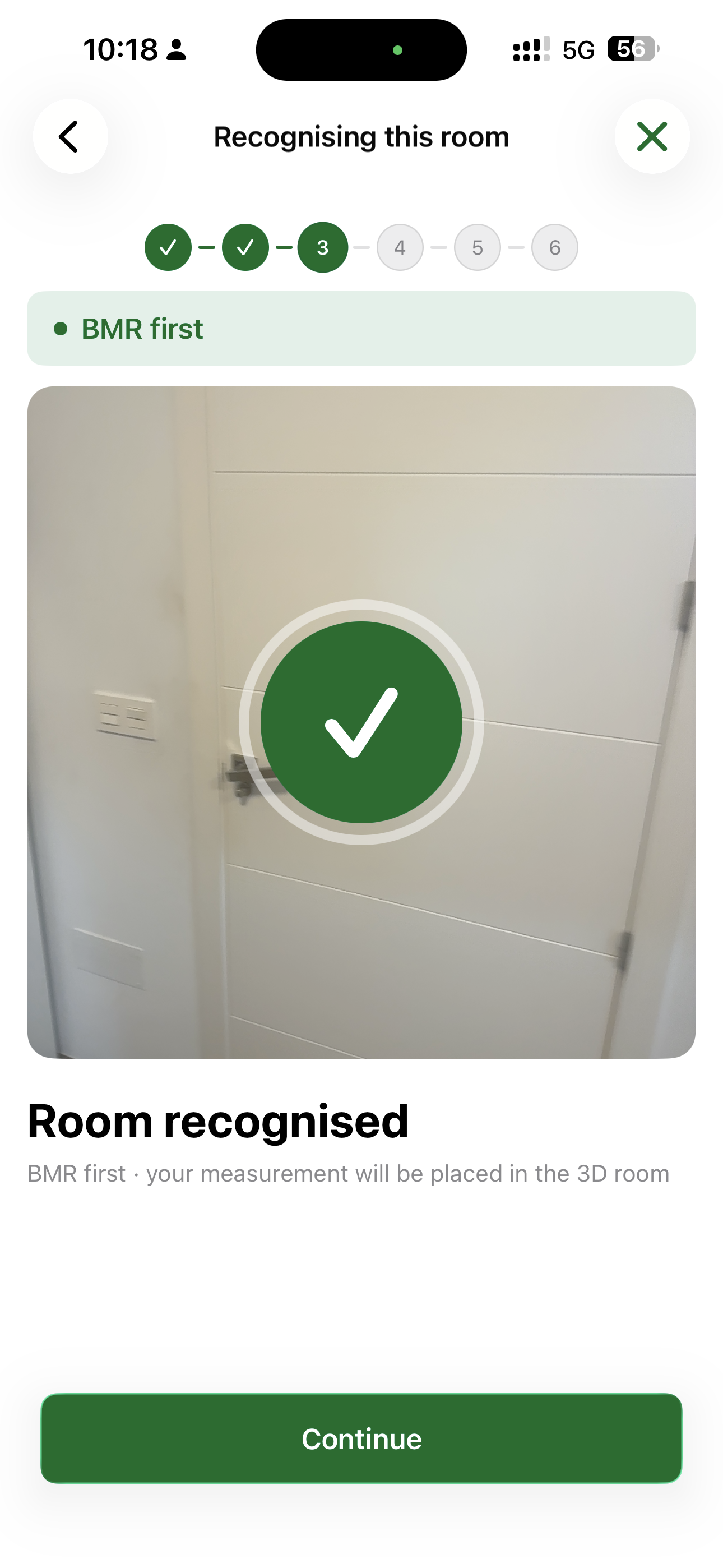
The redesigned flow gives live feedback while it runs: a "% of room seen" indicator, directional hints ("Keep turning left"), and a clear "Room recognised" confirmation.
Advanced and Basic acoustic measurement — Advanced by default
The acoustic measurement now runs in one of two modes. The difference is position detection — the acoustic result is identical.
- Advanced (default) — detects the position of the speaker (with a photo) and of each measurement, placing them in the 3D room. Requires a room scan and an internet connection.
- Basic — skips position detection entirely. The measurement starts faster and works offline.
The app picks Advanced automatically whenever possible and falls back to Basic otherwise.
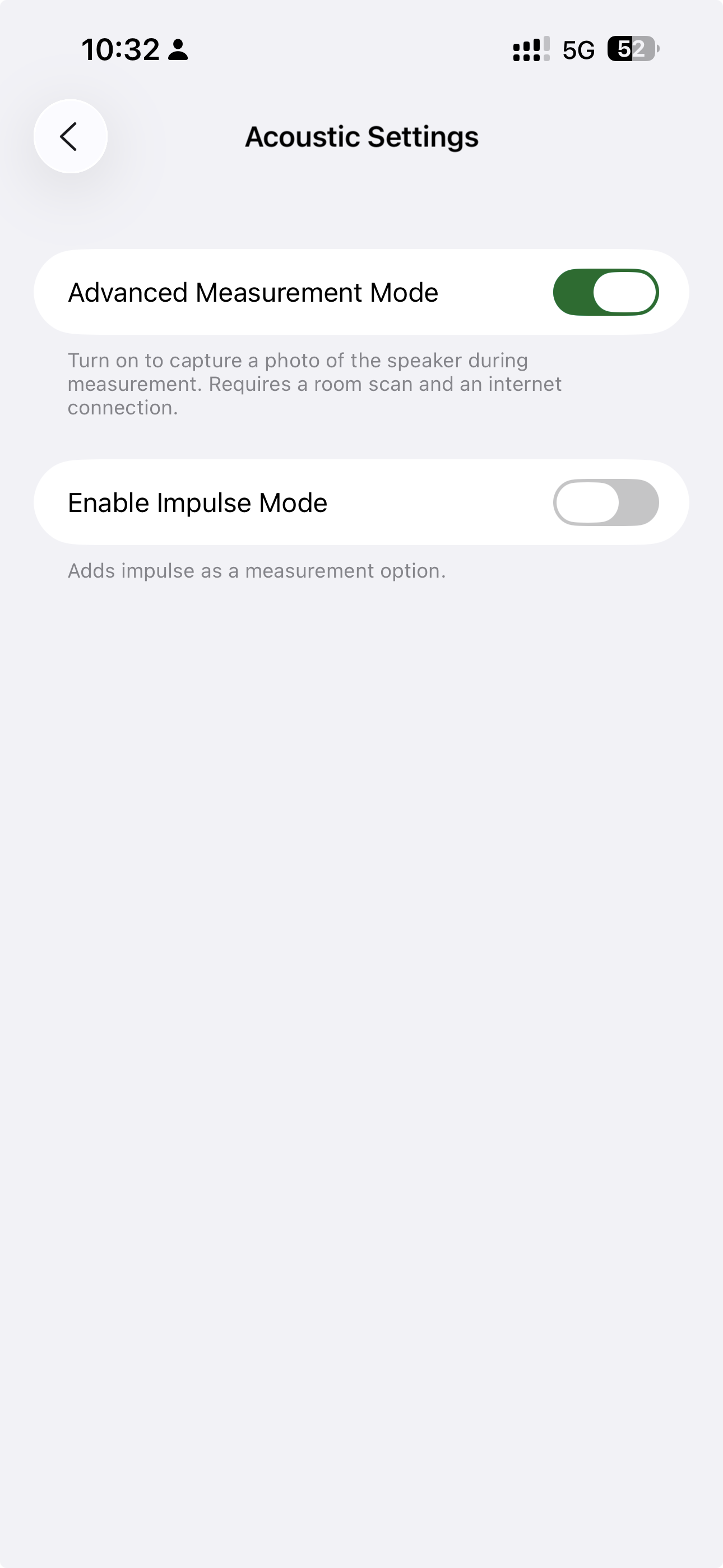
The mode can currently only be changed in the app, under Settings → Acoustic Settings → Advanced Measurement Mode — not from the web platform. The default is Advanced.
Position data will power upcoming features — better measurement quality and Auralisation, letting you listen to how a room sounds.
New in-app guidance
The app now shows you what to do and in which sequence:
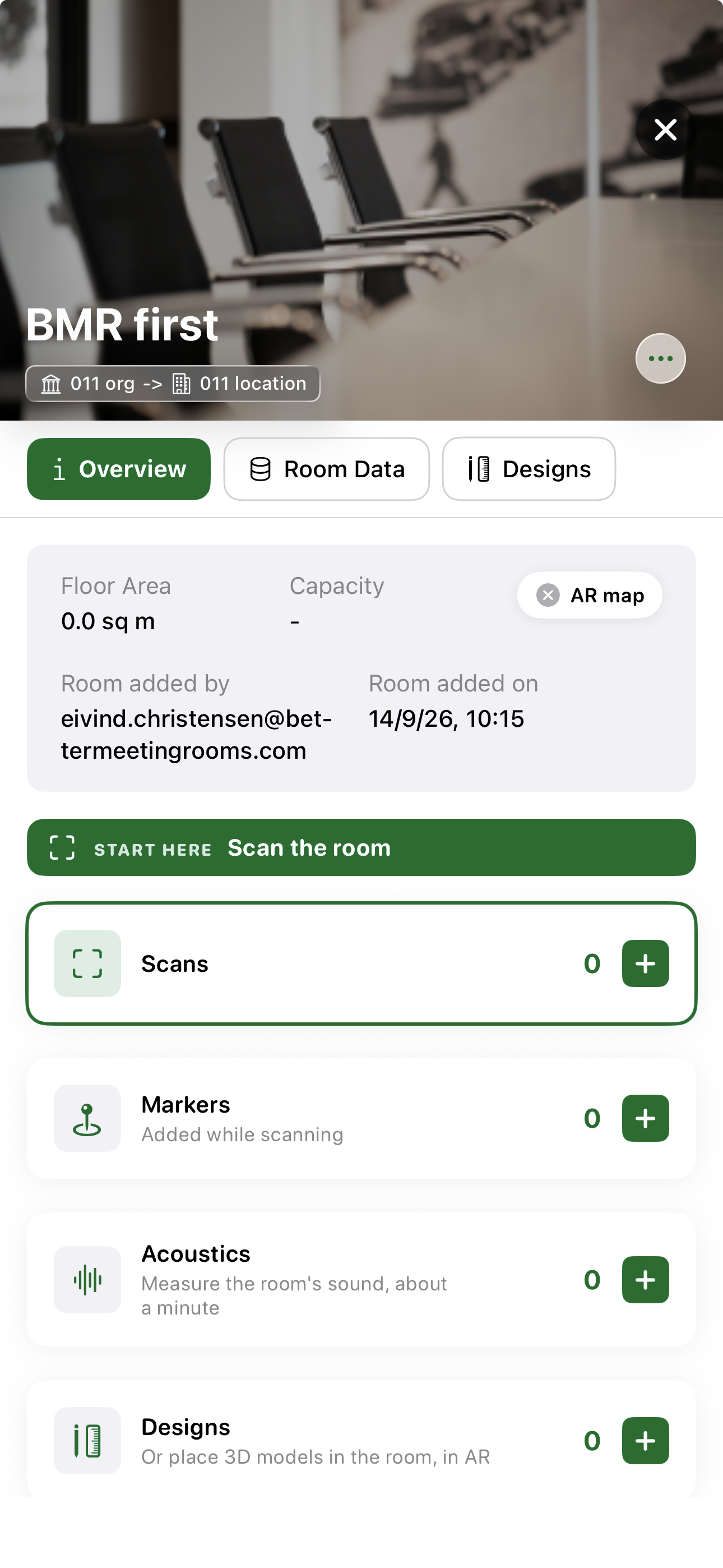
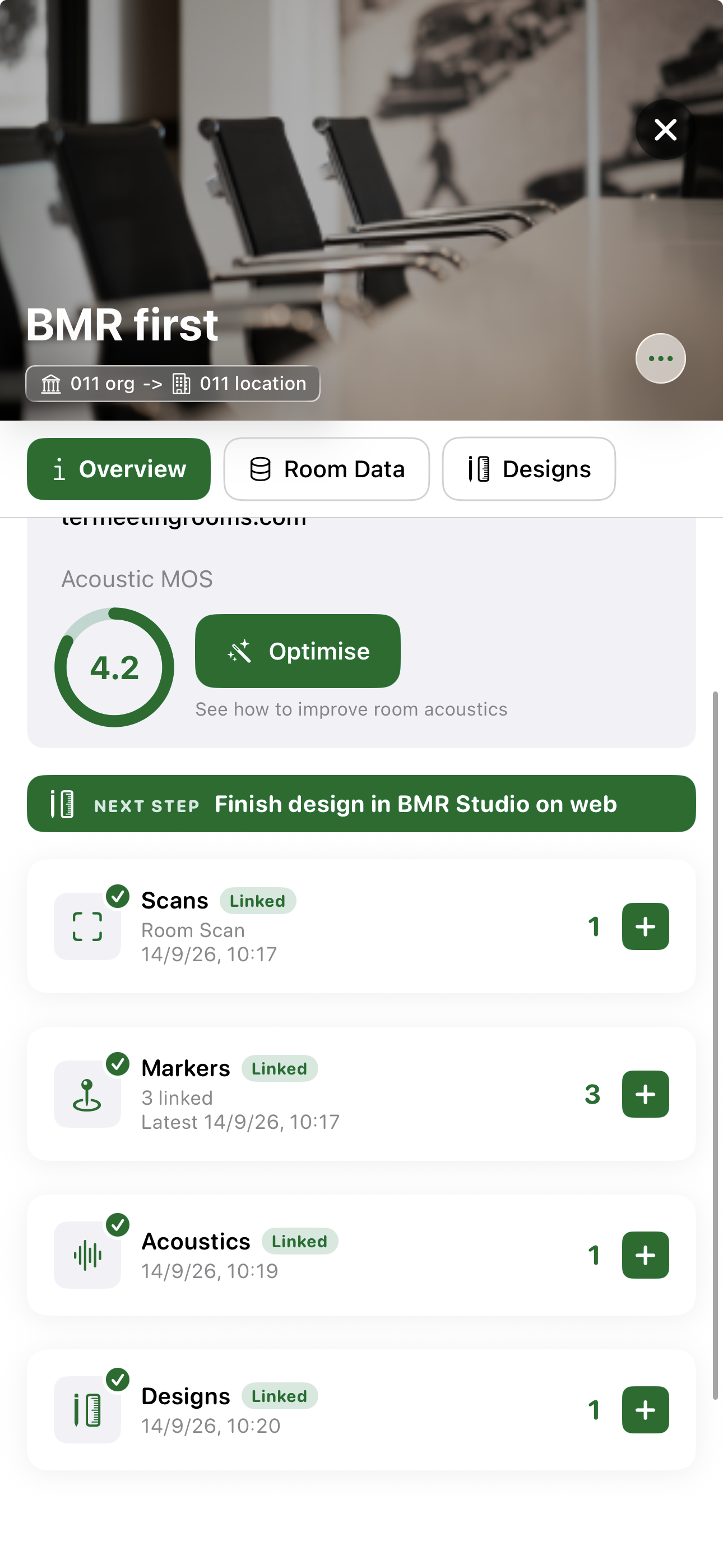
- The room overview always shows the next step — from "Start here — Scan the room" to "Finish design in BMR Studio on web".
- Completed steps are ticked off, and each card explains its step in one line.
- A one-time guided tour introduces the sequence: Scan → Acoustics → AR Design.
New features highlighted after an update
After an update, new features are pointed out right where they live: a one-time spotlight highlights the new control with a short explanation. Dismiss it and continue working.
End of Release Notes