Release 1.2 2026 May
This release introduces BMR Studio — the unified 3D workspace for all room design work, available on Web, iPhone, and iPad — alongside redesigned Organization and Location overview pages, Notes across all elements on both Web and BMR Mobile, and significant refinements to the Acoustic Flow.
Web Platform
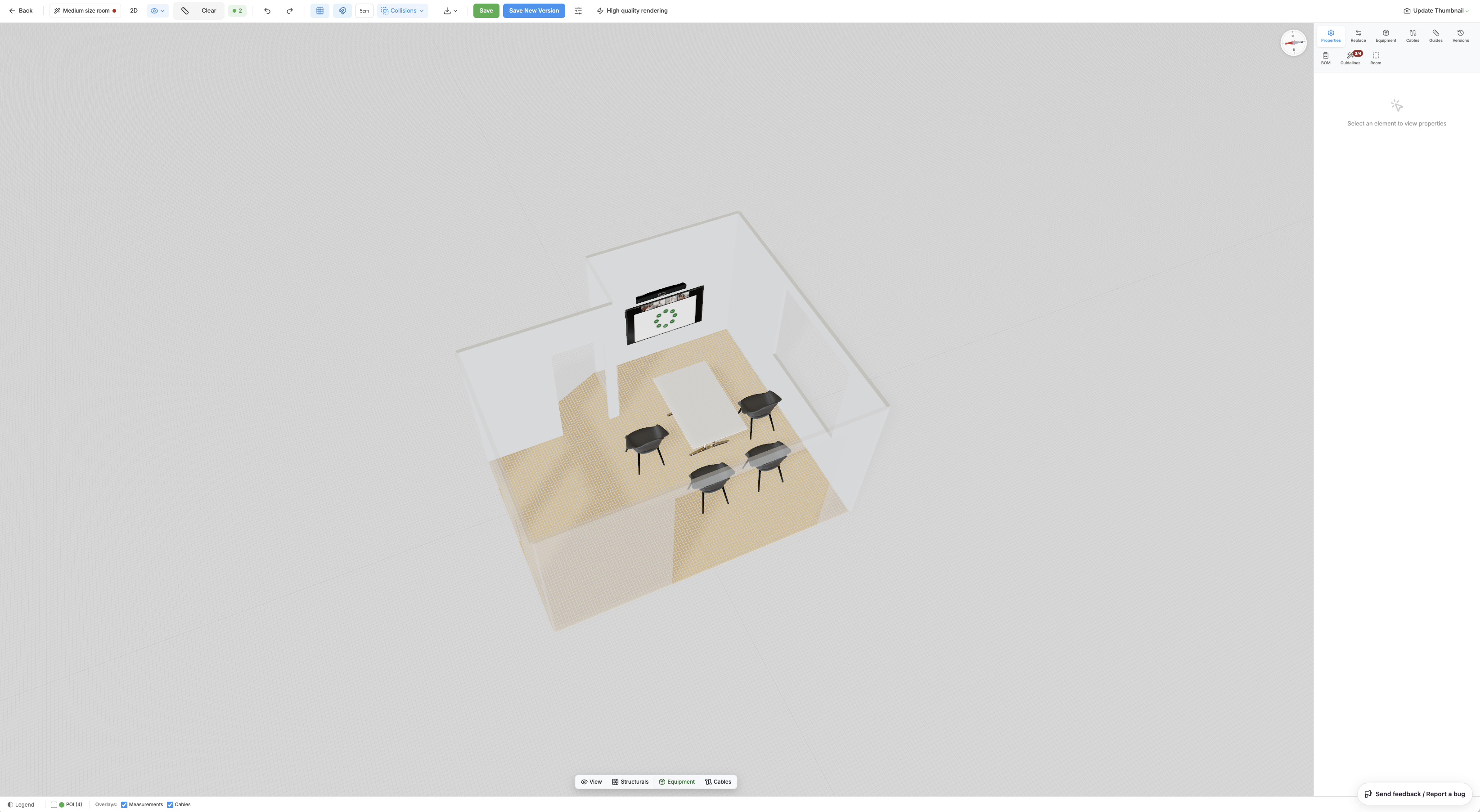
BMR Studio
BMR Studio is now available — the single 3D environment used for all room design work in BMR. It is accessible on the Web, iPhone, and iPad.
Modes
BMR Studio uses dedicated modes so you can focus on one thing at a time:
- View — explore the room and review designs
- Structurals — adjust structural components such as walls, windows, doors, and other building elements
- Equipment — add and remove equipment and furniture in the design
- Cables — plan and document cable routing between devices
More modes will be added over time, and existing modes will continue to be refined.
What you can do
- Place and configure equipment from the catalog
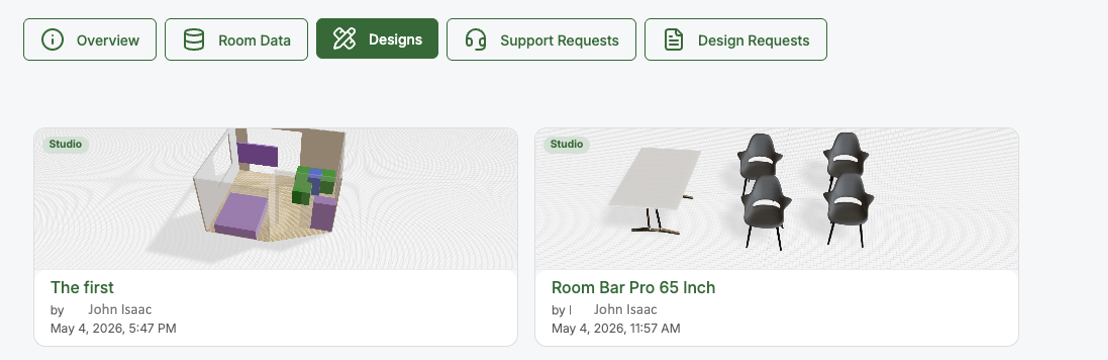
- Create and manage multiple design versions for the same room
- Move a design through approval and mark it as the Active Design
- Generate an equipment list automatically from placed items
Open BMR Studio from the Design section of any room — on Web, iPhone, or iPad.
New Organization Overview Page
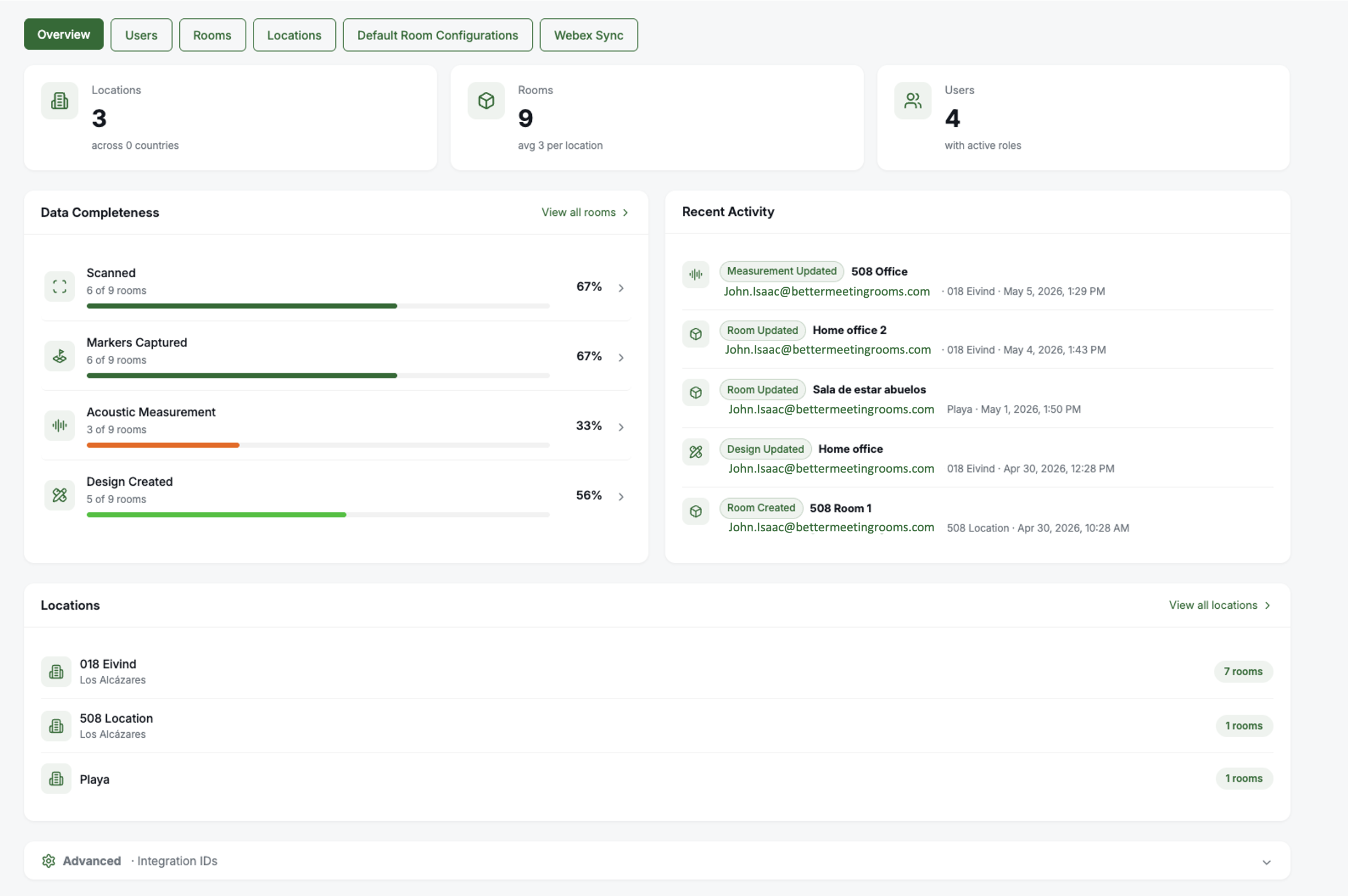
The Organization page has been redesigned with a clear, data-driven overview.
What's new
- Quick stats — Locations, Rooms, and Users at a glance
- Data Completeness — visual progress bars for Scanned, Markers Captured, Acoustic Measurement, and Design Created across all rooms
- Recent Activity — latest changes across the organization with user attribution and timestamps
- Locations list — direct access to each location with room counts
- Unified tabs for Overview, Users, Rooms, Locations, Default Room Configurations, and Webex Sync
This gives admins and project leads a clear snapshot of organisational progress without drilling into individual rooms.
New Location Overview Page
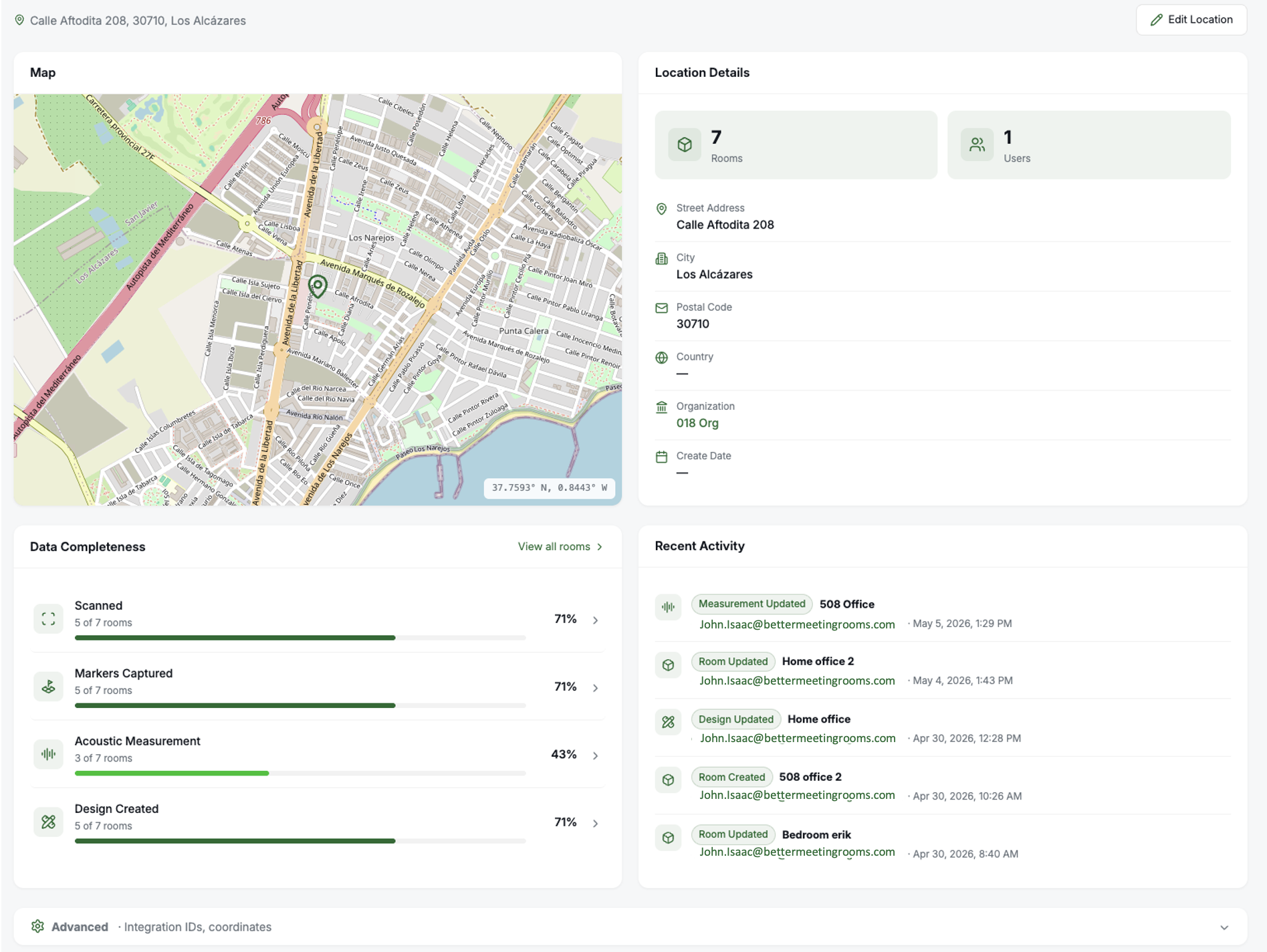
Locations now have a dedicated overview page with the same structure as the Organization view.
Highlights
- Interactive map showing the location's position
- Location details — address, city, postal code, country, organization, and create date
- Quick access to all Rooms at the location
- Data Completeness scoped to the location
- Recent Activity for the location
This makes it much easier to manage locations across larger portfolios and to communicate progress at the location level.
Updated Assign Task Section on Room Page
The Assign Task section on the Room page has been refined for clarity and faster workflow.
Improvements
- Cleaner layout for Discovery and Design tasks
- Easier assignment and reassignment from the room view
- More consistent task status indicators across the room page
Notes on All Elements
You can now add notes to elements across the Web platform and BMR Mobile.
Where you can add notes
- Organizations, Locations, and Rooms
- Scans, Markers, Acoustic measurements, and Designs
Why it matters
- Keep context with the data it relates to
- Capture decisions, observations, and follow-ups
- Improve handover between team members across the lifecycle
MOS Score in the Acoustics List
The Acoustics list now shows the MOS Score for each measurement directly in the list view — on both the Web platform and BMR Mobile.
This makes it much easier to:
- Compare acoustic quality across rooms at a glance
- Identify rooms that need acoustic attention
- Track improvement over time
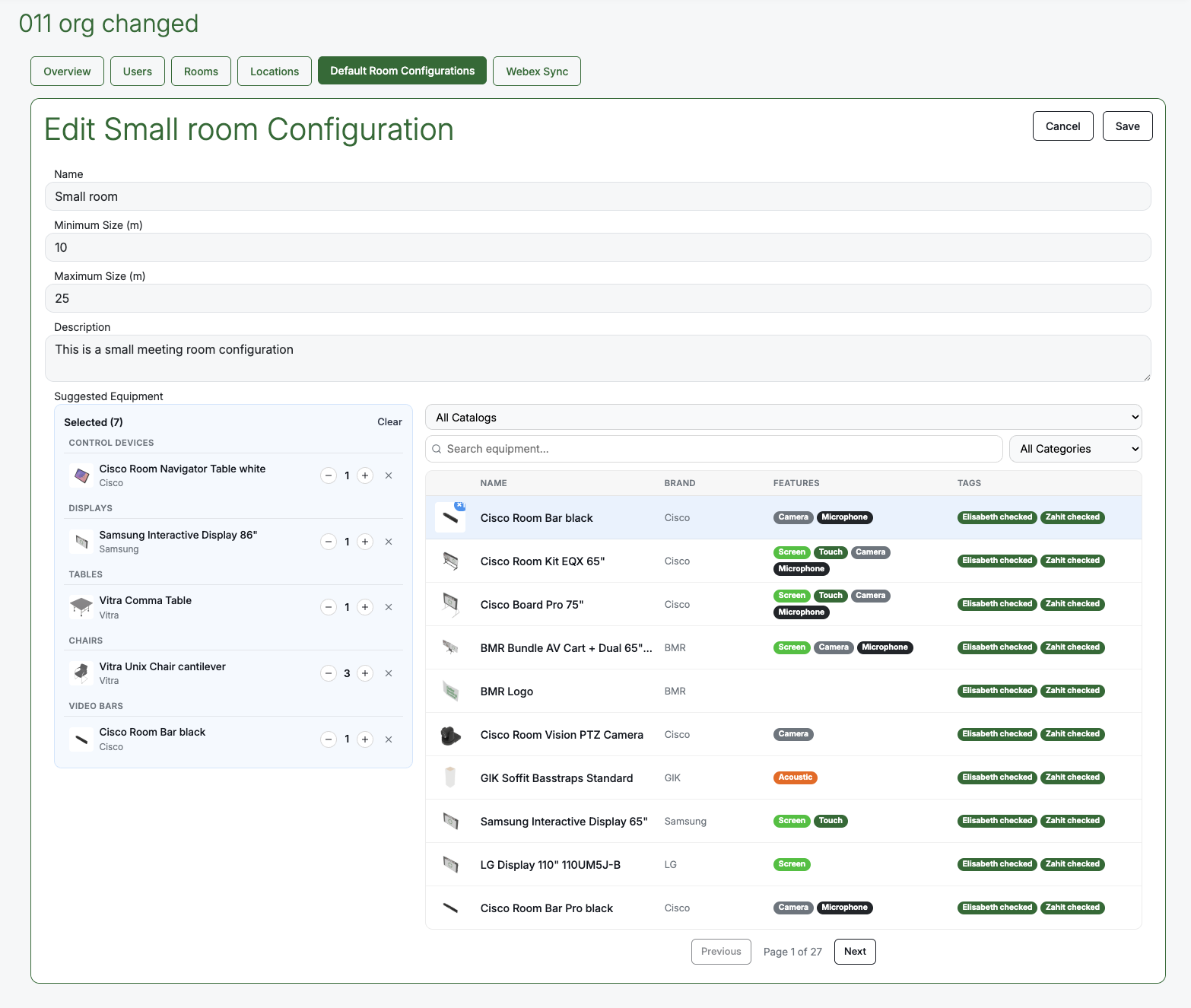
Default Room Configuration
Organizations can now define Default Room Configurations — recommended equipment setups based on room size and usage type.
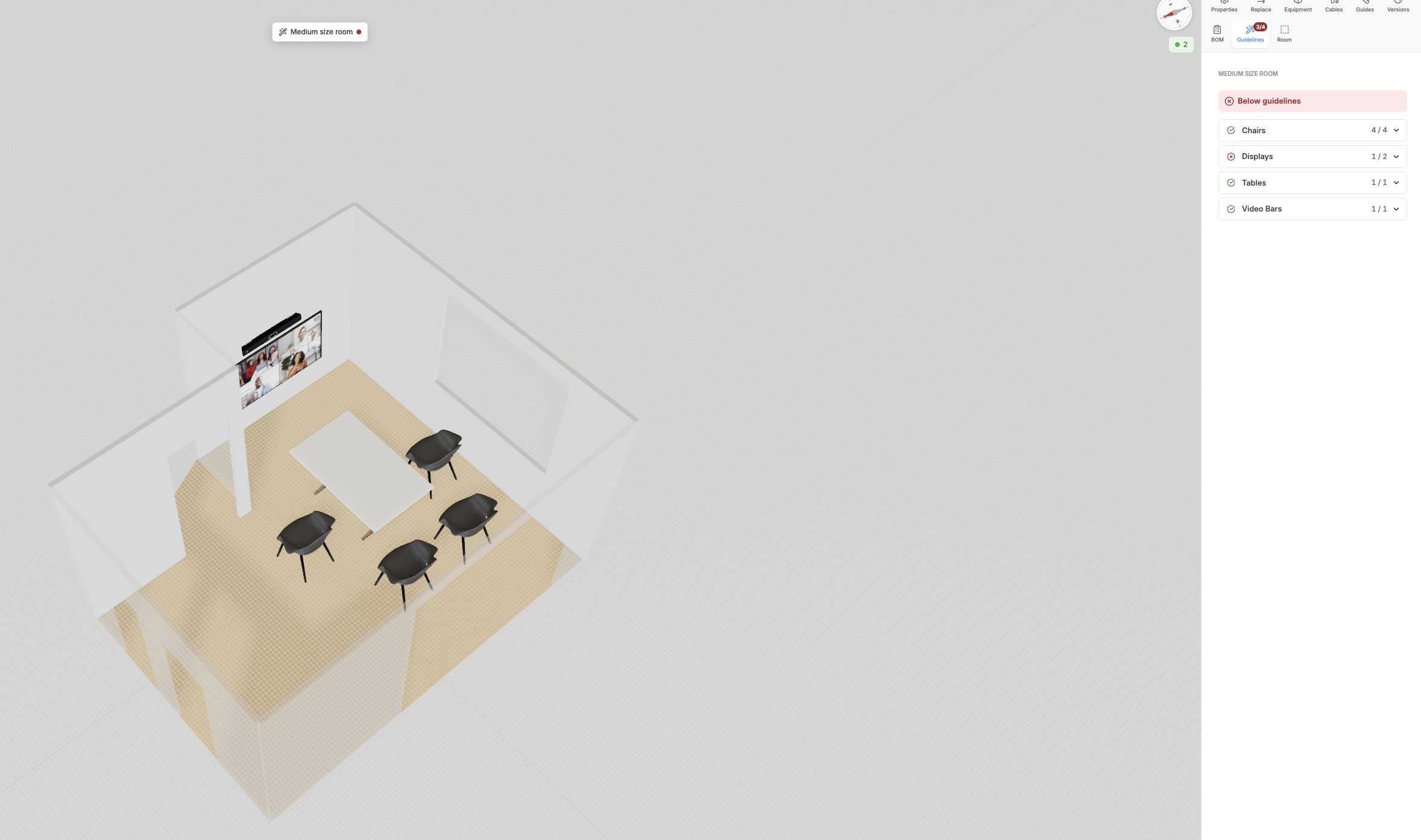
For example, you can specify that a room between 20–40 square meters should have a Room Bar, dual 65" screens, a table, and 6 chairs. When a user opens BMR Studio to design a room that falls within that size range, they are presented with the recommended configuration and can select and place those components directly into the design.
How it works
- Define configurations by room size range, usage type, and suggested equipment with quantities
- Equipment is selected from the full BMR catalog
- When designing a room in Studio, matching configurations appear as recommendations in the sidebar
- The user can accept the recommendation and place the suggested items, or choose their own
This makes it easy to maintain consistent standards across an organisation — from 10 rooms to 10,000.
Default Room Configurations are managed under the Default Room Configurations tab on the Organization page.
BMR Mobile (iPhone / iPad)
Updated MOS Score Formula
The MOS score now factors in Bass Ratio as a penalty on top of the Reverberation Time base — reflected in the score shown after every measurement on BMR Mobile.
What changed
- Bass Ratio is now a direct input to the score, penalising deviation from a neutral reference of about 1.15. Earlier releases displayed Bass Ratio alongside the other measurements but did not feed it into the score.
- Speech-to-Noise Ratio (SpNR) is captured today and will start contributing to the score in the next release.
- Spatial Concentration and Flutter Echo follow after SpNR.
See Understanding the MOS Score for the full formula and a breakdown of each factor.
Acoustic Measurement Flow Refinements
Following the launch of the new Acoustic Flow in Beta 08, this release introduces several reliability and usability improvements.
What's new
- BMR Mobile now alerts you if no scan exists before starting a measurement, preventing invalid MOS = 0 results
- You can retest during the volume adjustment step without restarting the flow
- A Close (X) button has been added to all measurement steps for easier cancellation
- SNR calibration updated for more accurate speaker setup
- The acoustic list view now shows the MOS Score and output device for each measurement
These changes make the Acoustic Flow more forgiving, faster to recover from mistakes, and more accurate end-to-end.
AR Design (Available by request only)
AR Design is currently available by request only — contact the BMR team to have it enabled for your account.
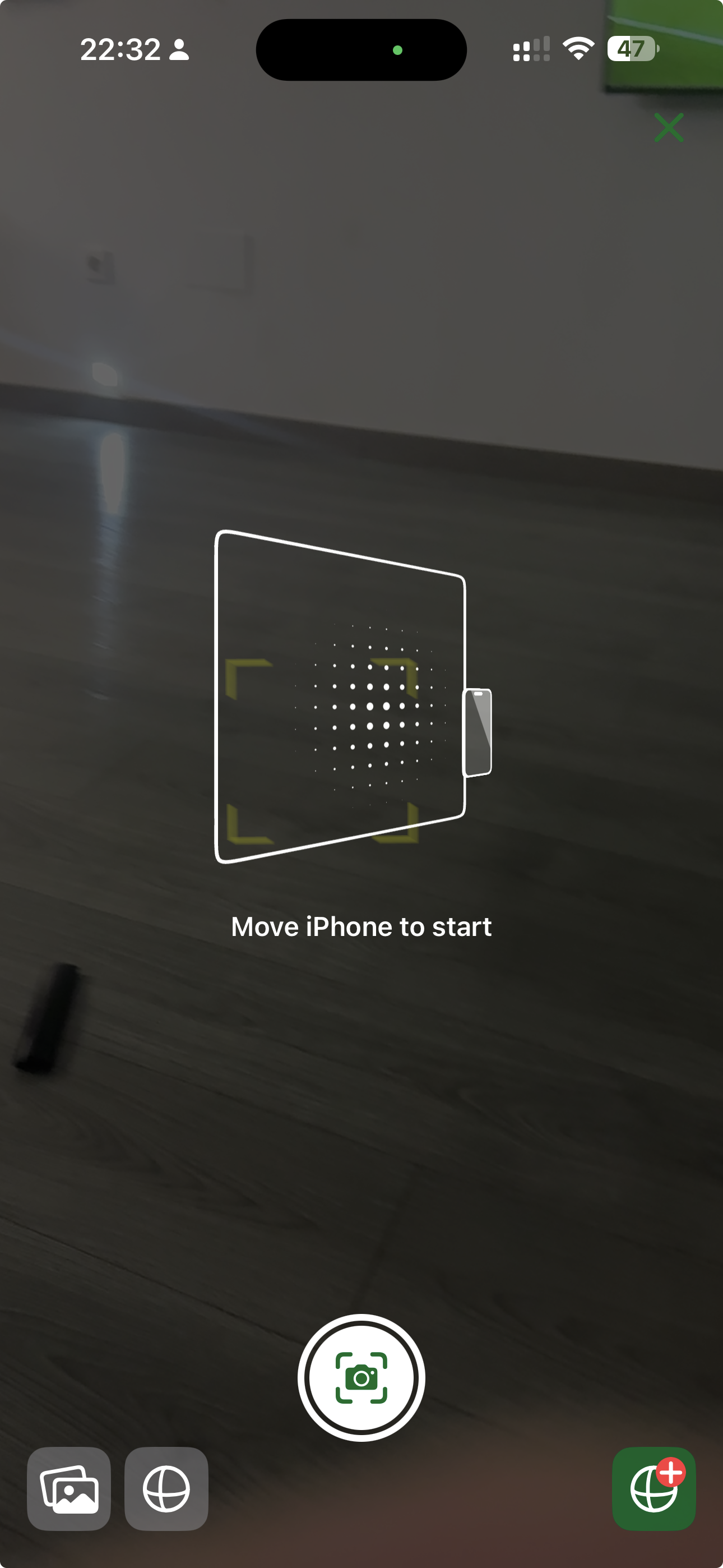
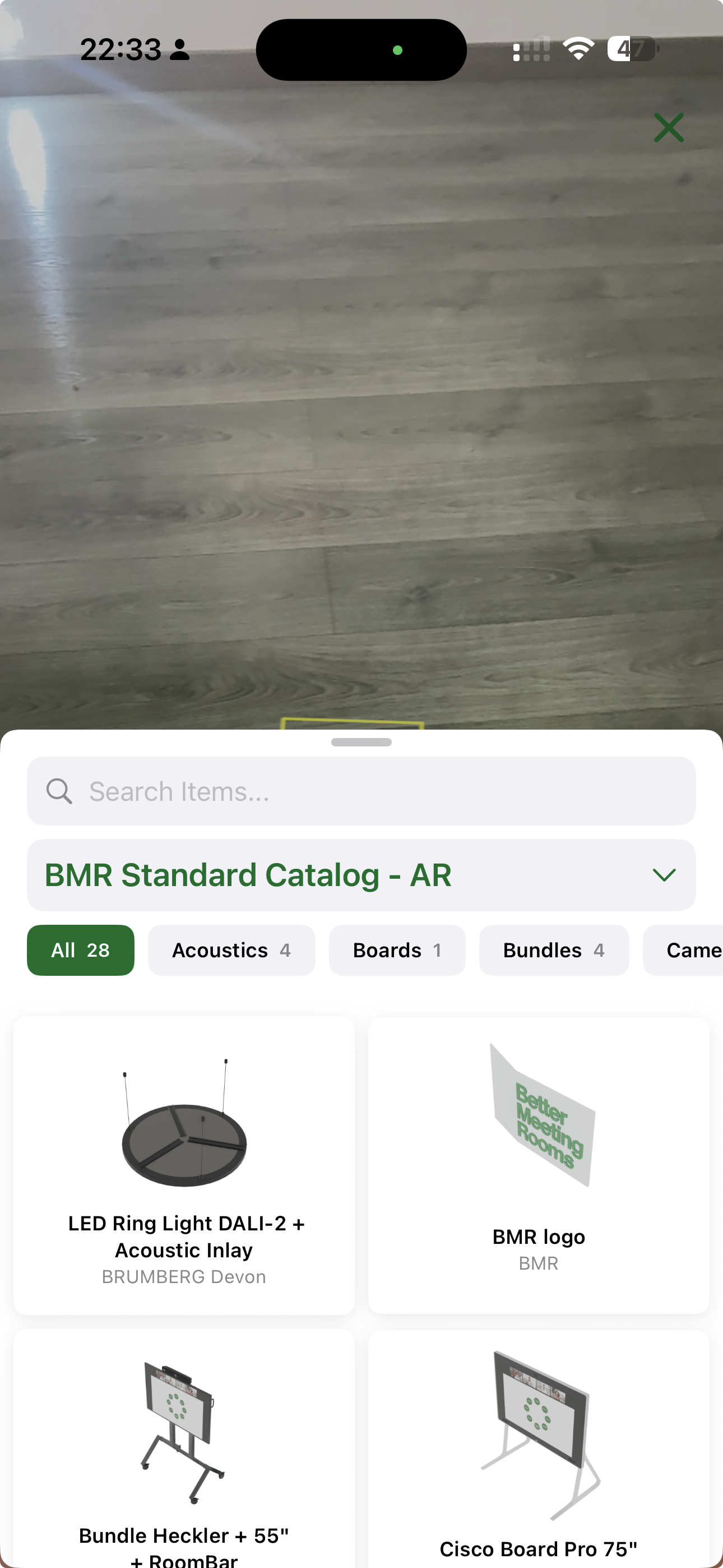
Once enabled, you can place equipment directly in the physical room using AR and save the result as a design. The AR Design combines with the room scan so you can continue refining in BMR Studio afterwards.
How it works
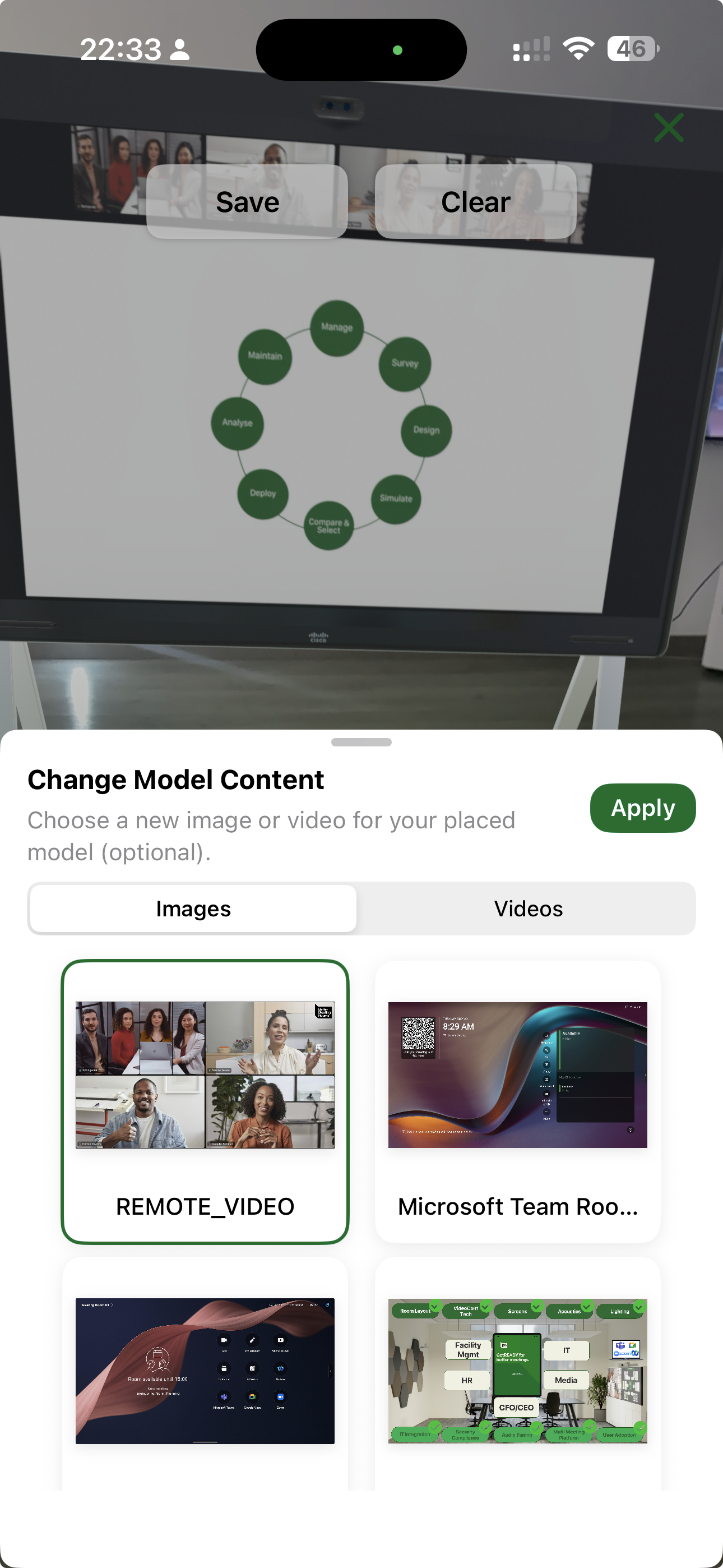
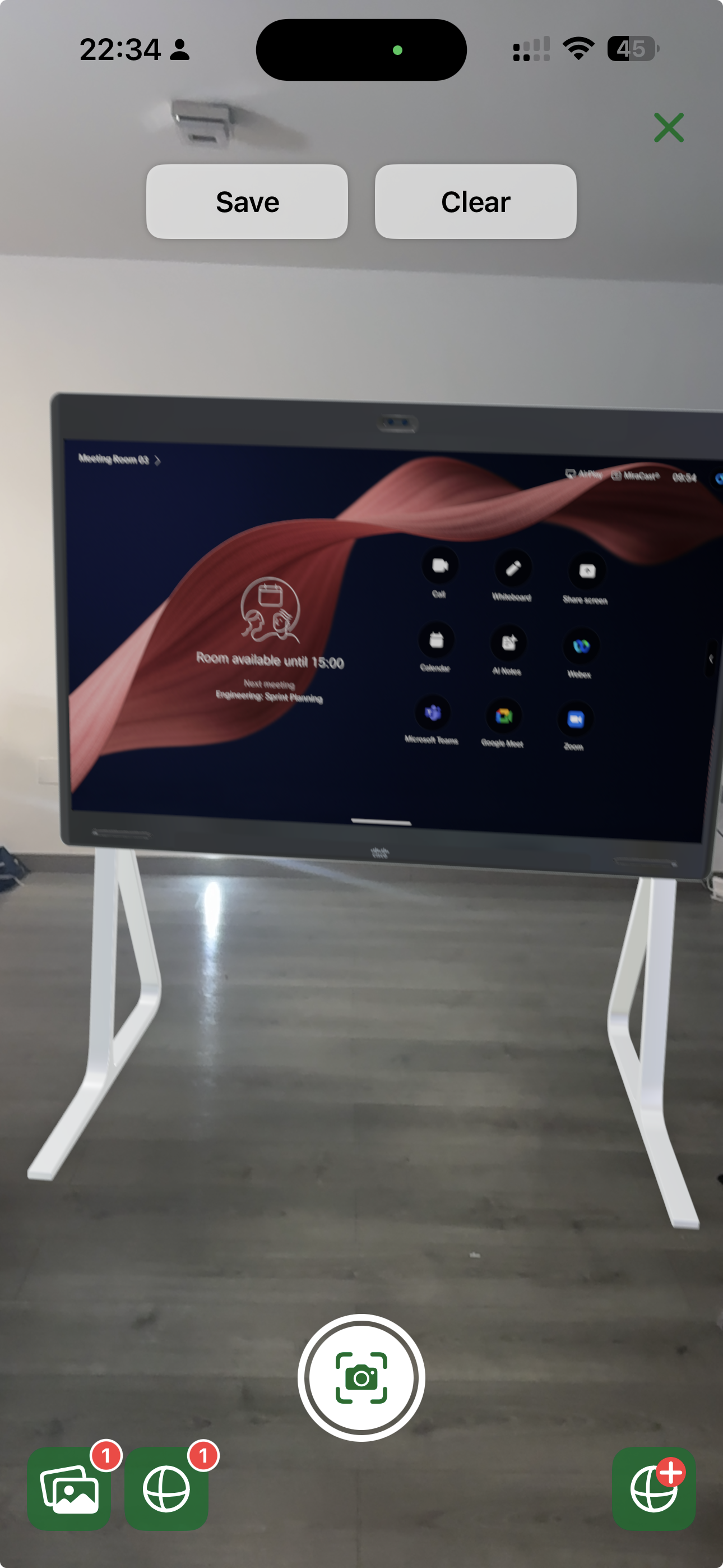
- Find coordinates — move the iPhone around the room so BMR Mobile can locate the scan's coordinate space
- Add equipment — tap the equipment icon to browse the catalog and select items to place
- Choose content — for screens and displays, select what content to show (still images or video)
- Place in the room — position the item at the right location in the physical space
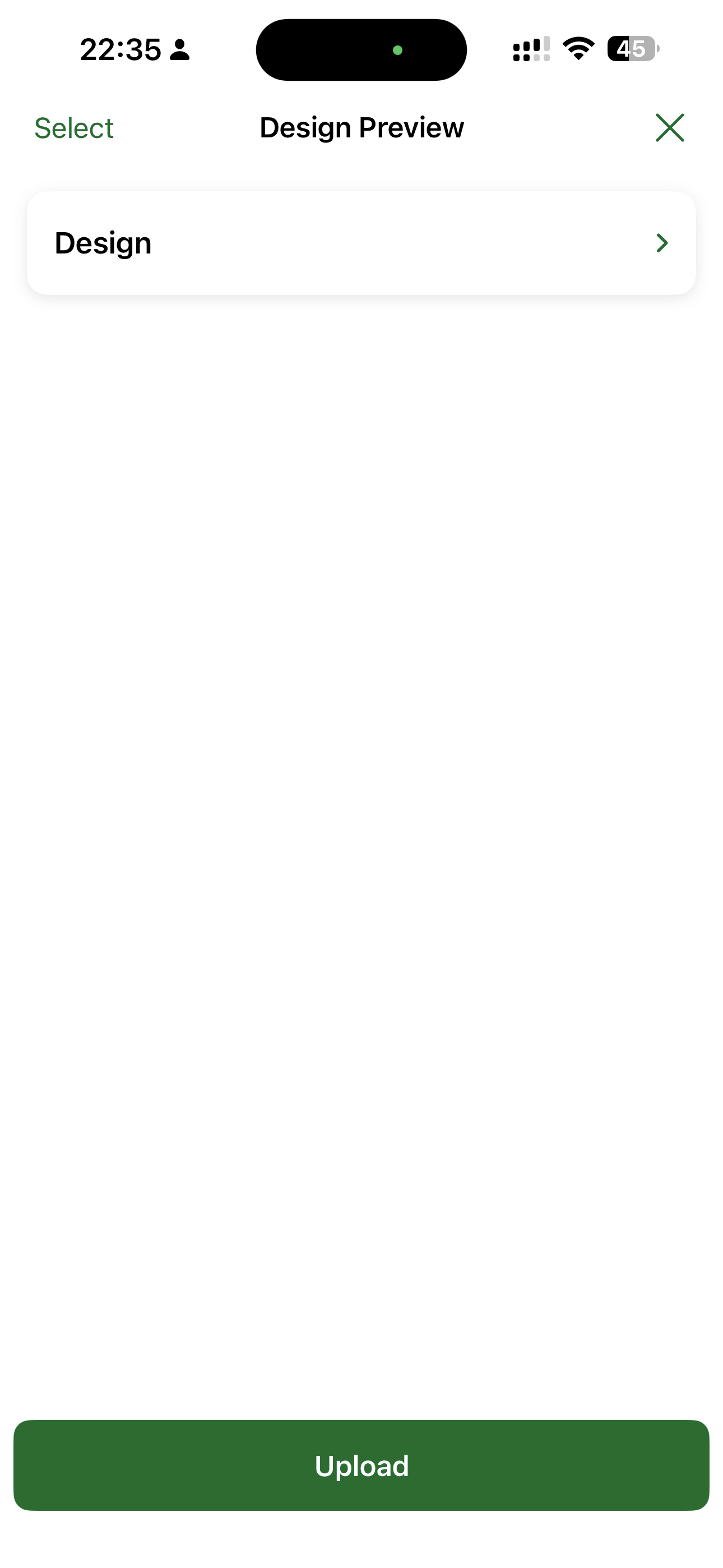
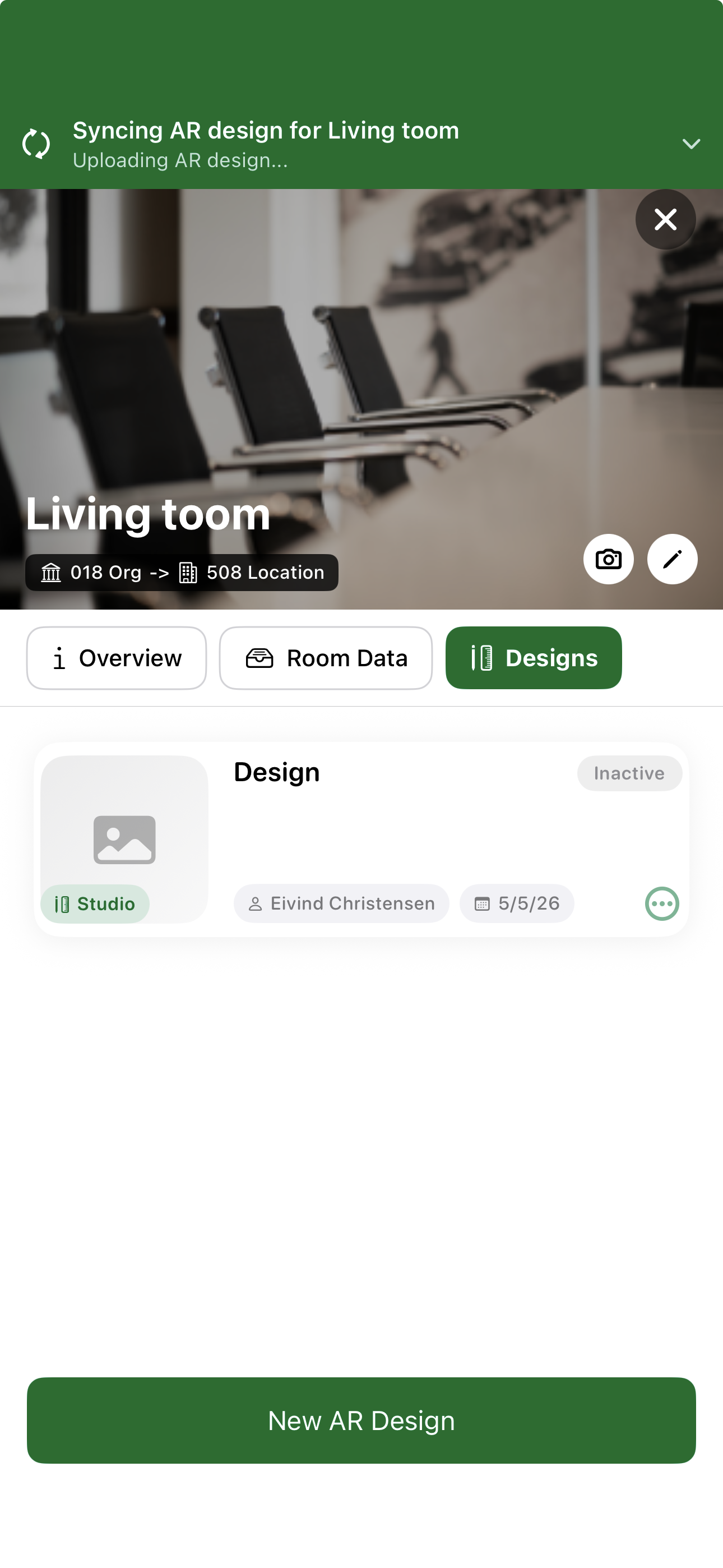
- Save — upload the AR-placed items as a design
- Continue in Studio — the design appears in the Designs section, ready to refine in BMR Studio
A room scan is required before starting an AR Design. If no scan exists, BMR Mobile will prompt you to scan the room first — this is essential for combining the AR-placed items with the room model.
Design Preview in BMR Mobile
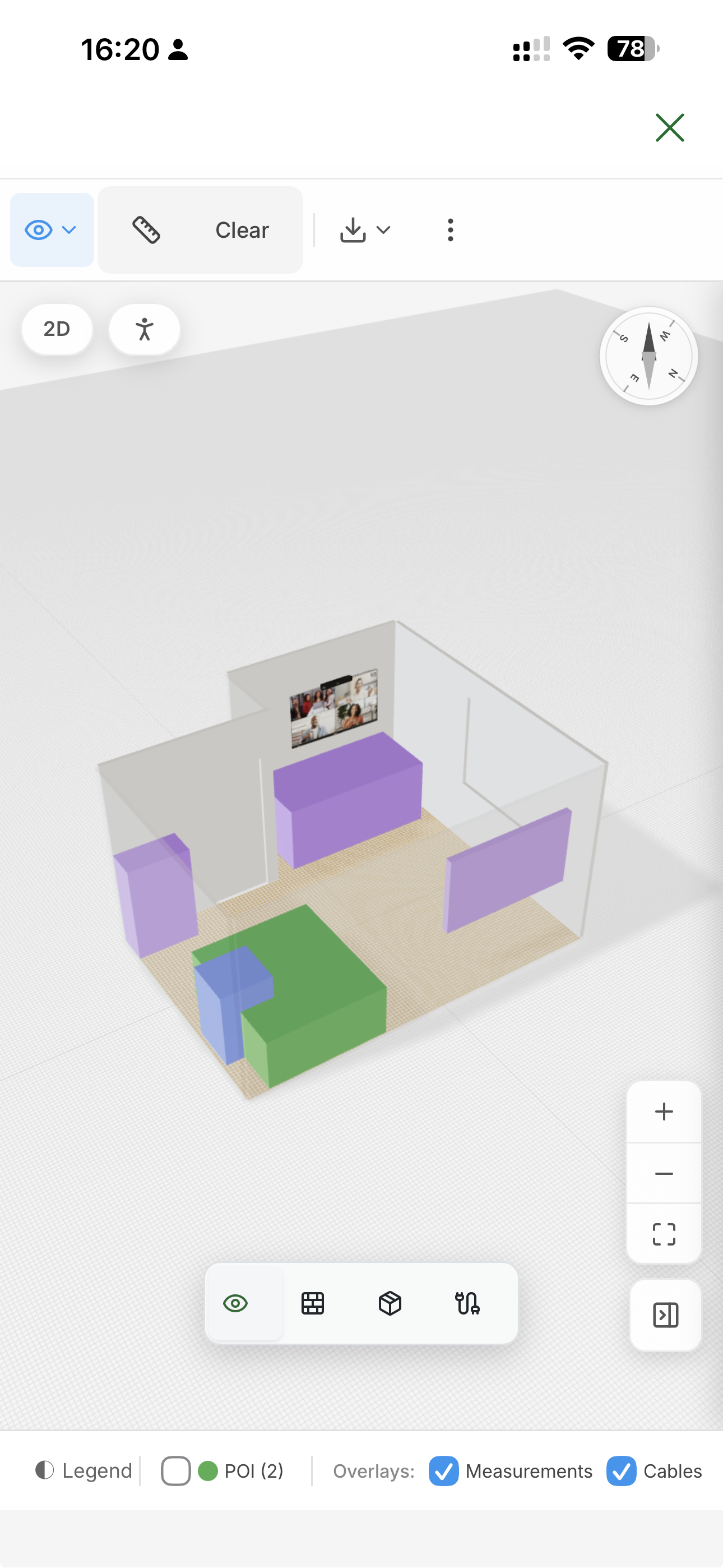
You can now view and edit designs directly in BMR Mobile — the same 3D design environment is available on both iPhone and iPad.
What you can do
- Open any design and review it in 3D from BMR Mobile
- Toggle Measurements, Cables, POIs, and Legend overlays
- Switch between 2D and 3D views
- Make edits to the design from BMR Mobile
iPhone vs iPad
- iPad is recommended for editing. The larger screen makes design work comfortable and the interface is well suited to it.
- iPhone is not recommended for editing — the screen is too small for comfortable editing and the experience is not optimised for it. Use the iPhone for previewing designs in the field; switch to iPad or BMR Studio on the web for any actual design changes.
Auto-Fill Location Address
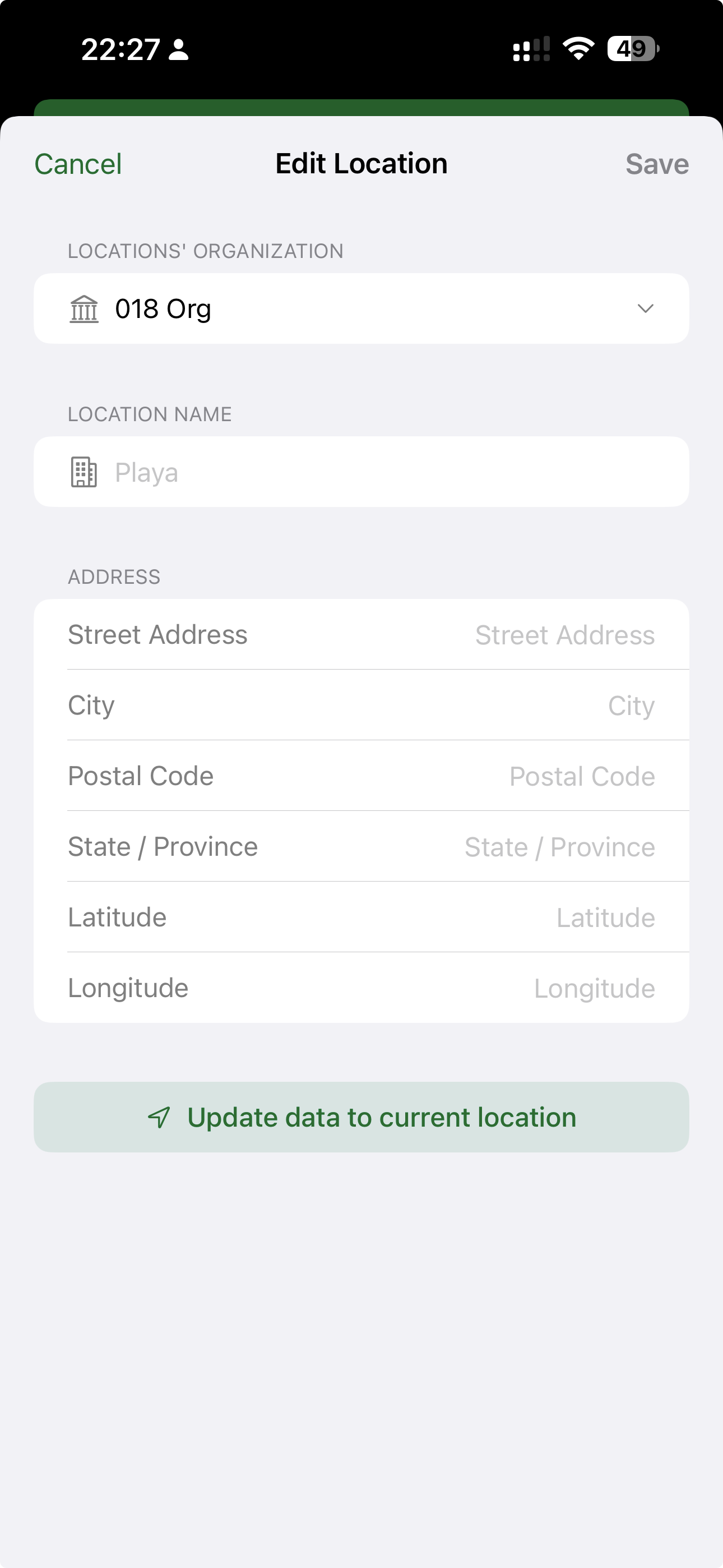
When editing a location, BMR Mobile can now automatically fill the address based on your iPhone's current GPS position. Tap Update data to current location and the street address, city, postal code, coordinates, and country are populated instantly.
Why it matters
- No manual address entry — especially useful when on-site at unfamiliar locations
- Accurate GPS coordinates for the location map
- Faster setup when surveying multiple locations in a day
Room Compass Orientation
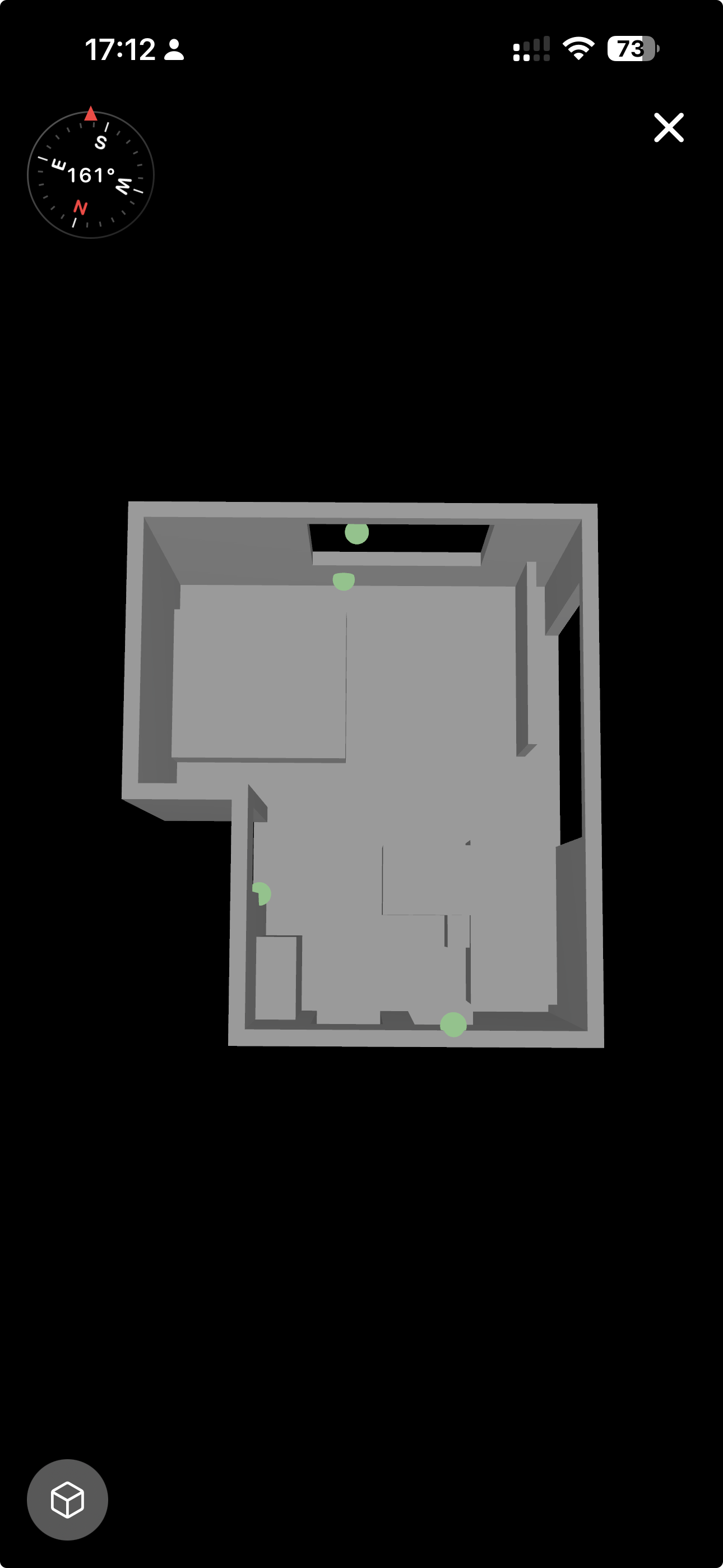
The room's compass orientation is now captured during scanning and synced to the backend. The compass is also shown in BMR Studio, so the room's real-world orientation is available during the Design phase.
Why it matters
- Reference walls and equipment using real directions — "the screen is on the west wall"
- Rooms are displayed in their true geographic orientation in Studio
- Foundation for spatially aware features — lots of exciting things to come here
Room Cell Preview with Counts
Room cards now display counts for scans, acoustics, markers, and designs at a glance.
This makes it immediately clear which rooms have complete data and which still need attention — without having to open each room individually.
iPad Improvements
Several refinements specifically for iPad users:
- Edit room and photo buttons added to the iPad room view
- The Organisation overview section has been optimised for iPad screen size
This makes the iPad a more capable device for room management and review work in the field.
Known Issues
The following issue is known in this release and will be fixed in the next version.
BMR Mobile — Notes not available on bundled measurements
The Notes feature is currently not available for bundled acoustic measurements. A fix will ship in the next release.
End of Release Notes