Release 1.4 2026 July
This release brings a major upgrade to BMR Studio — automatic design versioning, improved structural editing, and smarter cable routing — alongside a redesigned Room Overview, a new acoustics experience on the Web, and an improved acoustic measurement flow in BMR Mobile.
It also includes everything previously shipped in the 1.4 BETA release.
Web Platform
Equipment & Catalog — Place Default Room Configuration items from Guidelines
Recommended equipment from your Default Room Configuration can now be placed straight into the room from the Guidelines panel — no need to switch to the Catalog. The panel shows which guideline categories are fulfilled and which items are still missing, with a Place in room action for anything below guidelines.
Placement itself is smoother too:
- Equipment stays selected during rotation, so you can fine-tune without reselecting.
- Newly placed devices are auto-selected and show Advanced properties by default.
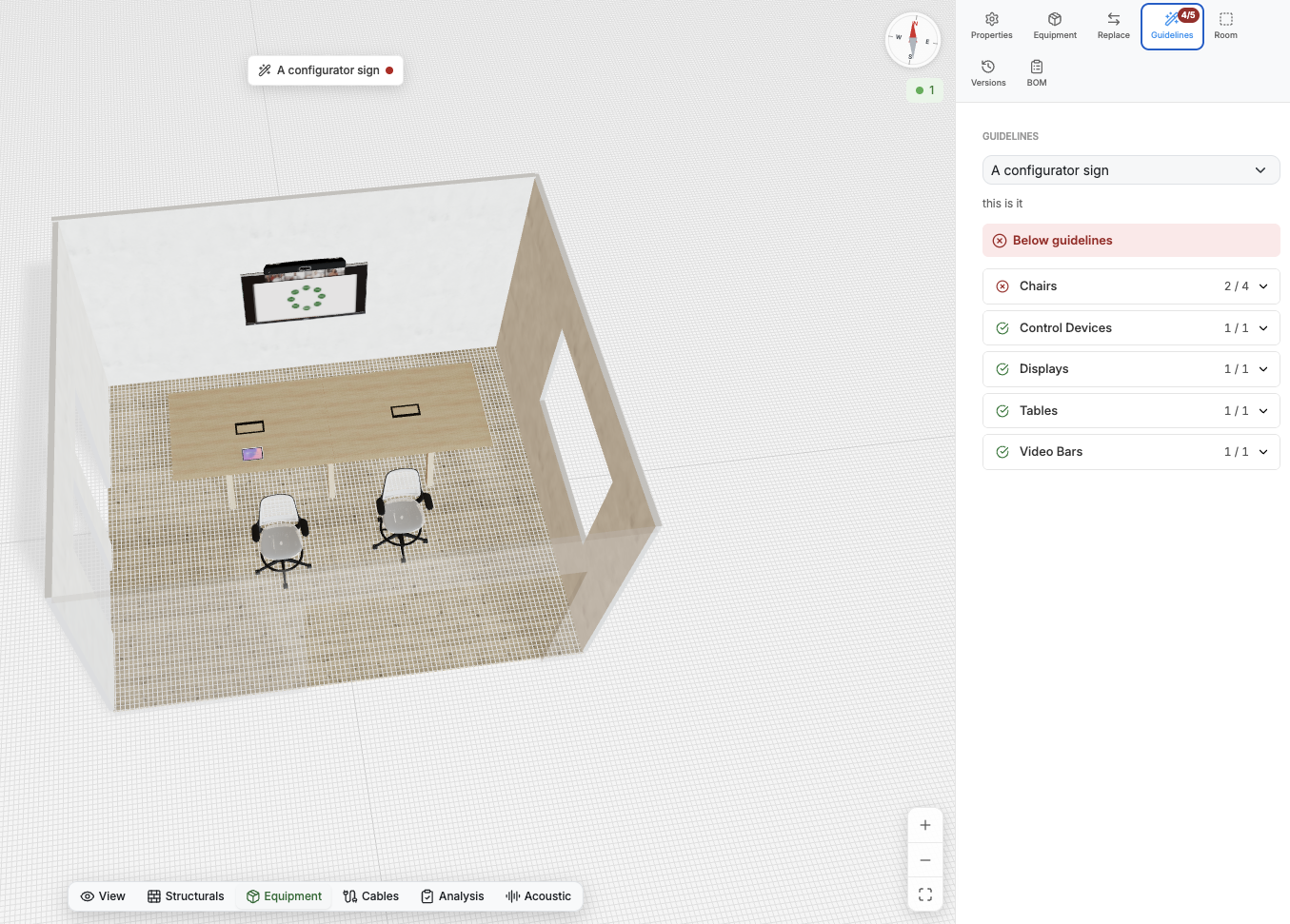
BMR Studio — Structural Mode improvements
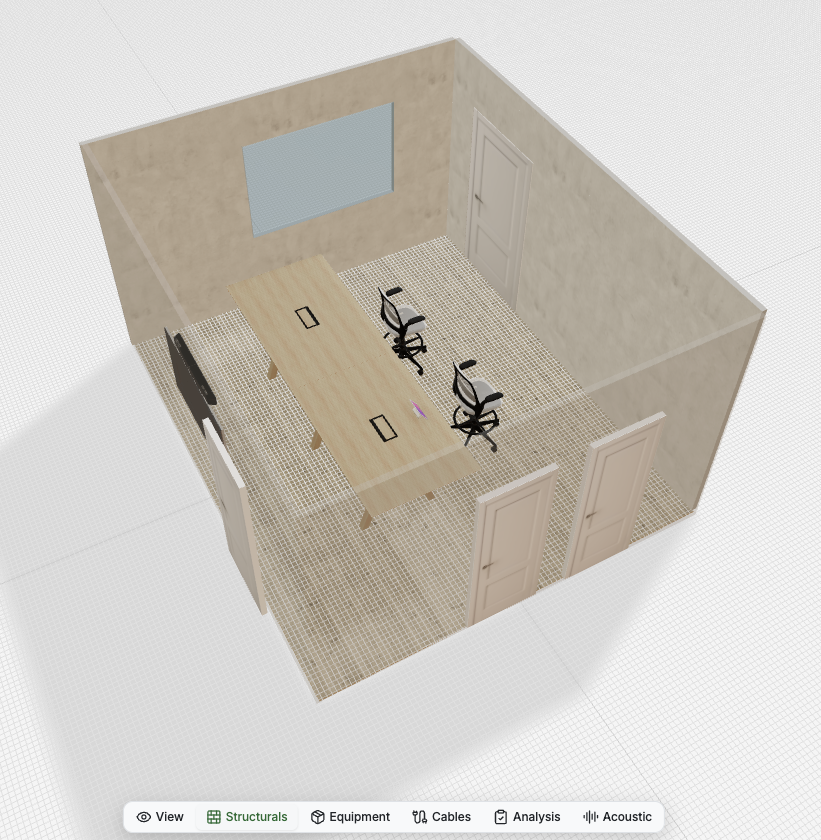
Structural editing now gives you the full picture from the start:
- Windows and doors are shown by default when entering Structural Mode.
- Improved behaviour when resizing the room.
- Surface materials and colors from the scan are applied to the generated design — markers are used to determine and apply surface color and material to walls and floors, so the design more closely resembles the real room.
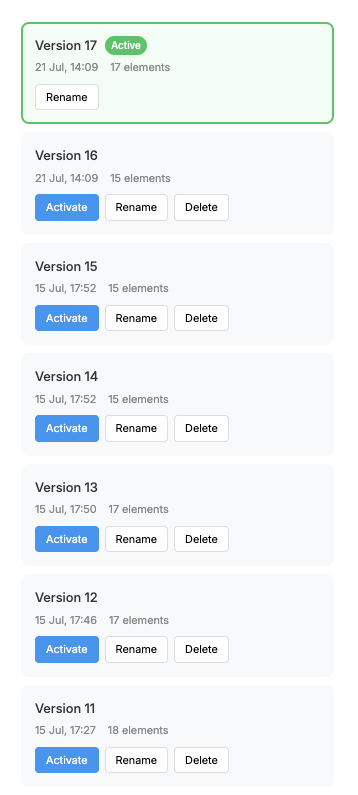
BMR Studio — Automatic design versioning
Your work is never overwritten:
- Versions are automatically created when saving or changing mode. Previous versions can be reviewed, renamed, activated, or deleted at any time from the Versions tab.
- Save as New Design is now an option in the top menu — for when you want a separate design rather than a new version.
- Designs are now shown as a list in the room design view, making it easier to identify and open the right design.
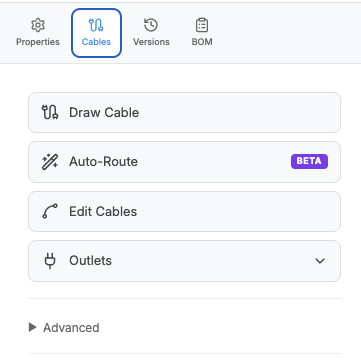
BMR Studio — Cables & Auto-Routing
Cable planning gets a cleaner, more realistic result:
- Outlets are now shown in the Cable Guide overview, giving a complete picture of the room's cabling and connection points.
- Improved auto-route cable bundling — cables sharing a common path are routed together, branching off only at the final drop.
- New Tidy Bundles option for cleaning up cable routing.
- Auto-Route and Tidy Bundles are labeled BETA to indicate their current working state.
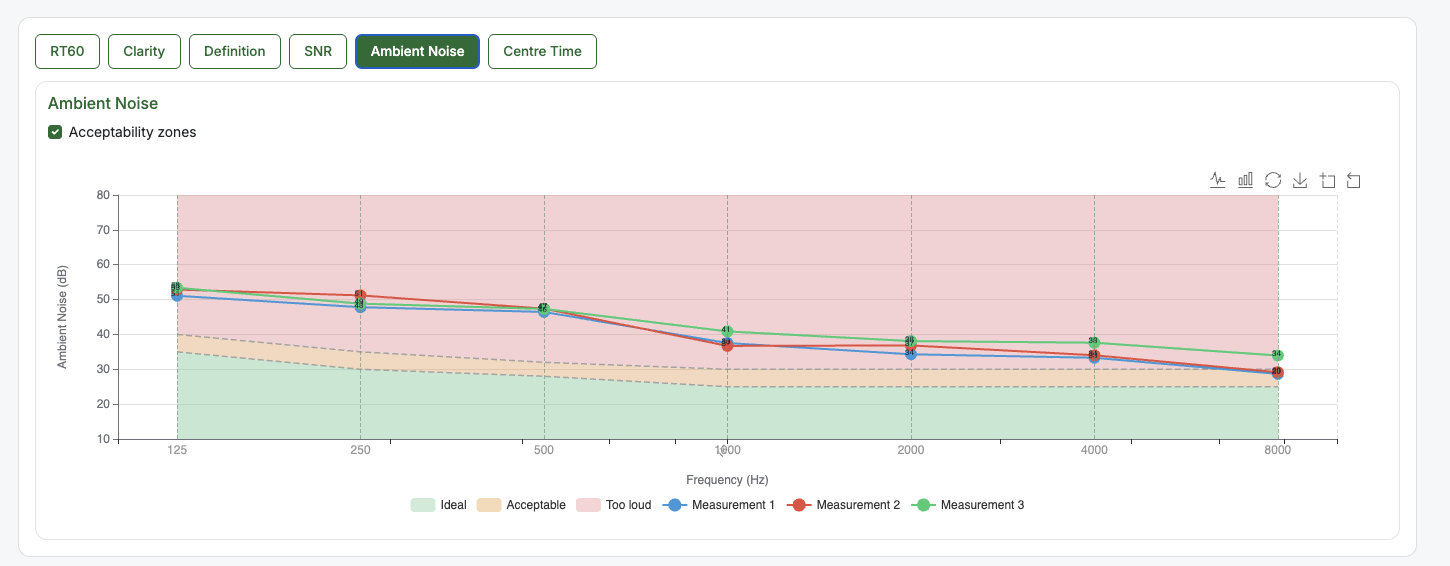
Acoustics — Ambient noise graph in measurement results
Acoustic measurement results on the Web now include an ambient noise graph with acceptability zones (Ideal / Acceptable / Too loud), so you can immediately see how background noise compares across measurements and frequencies.
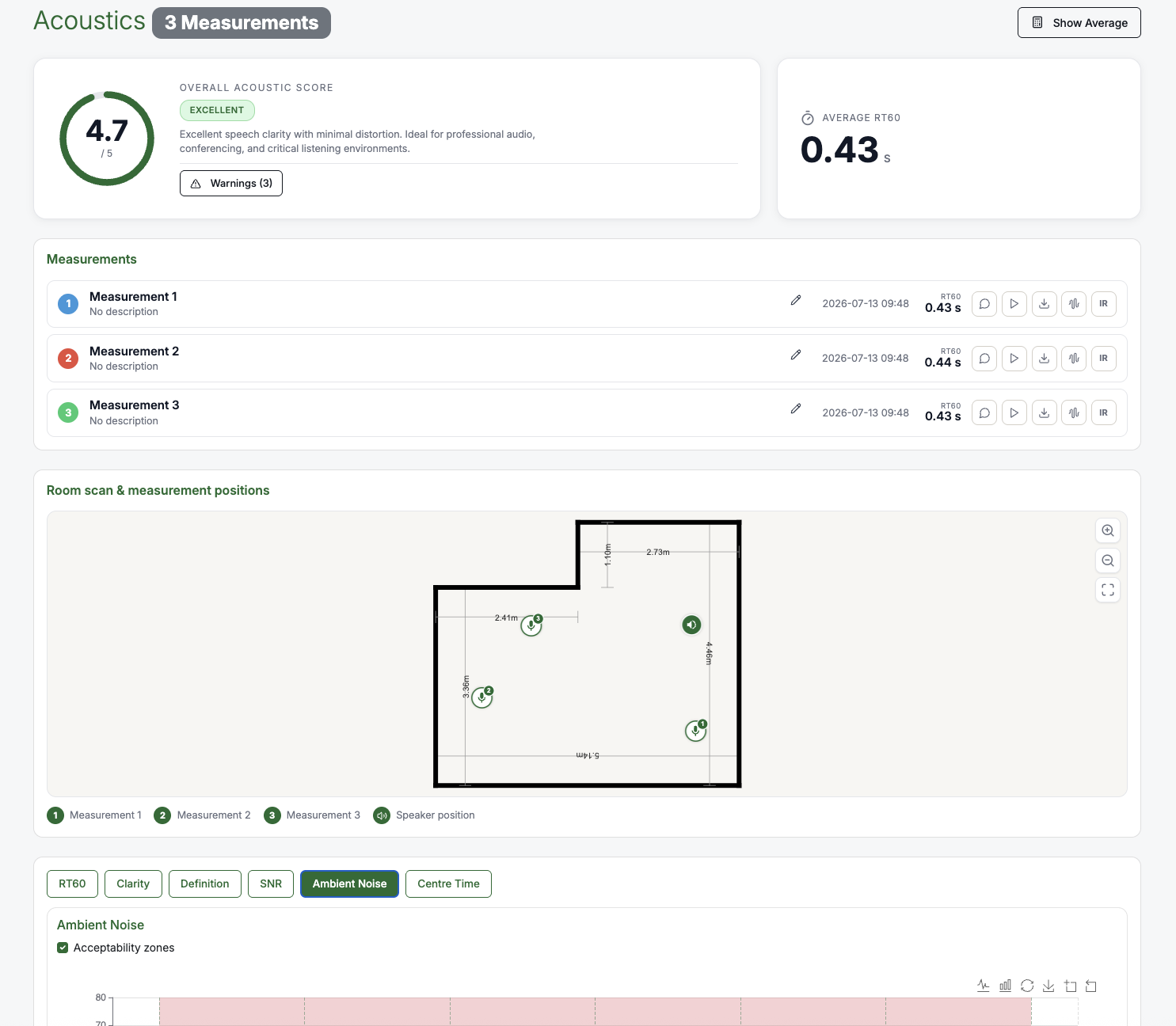
Acoustics — Redesigned acoustics page with measurement positions
The acoustics page has been redesigned to put the most important information first: the overall acoustic score and average RT60 at the top, a compact measurement list, and a new Room scan & measurement positions view (beta) showing exactly where the speaker and each measurement point were located in the room.
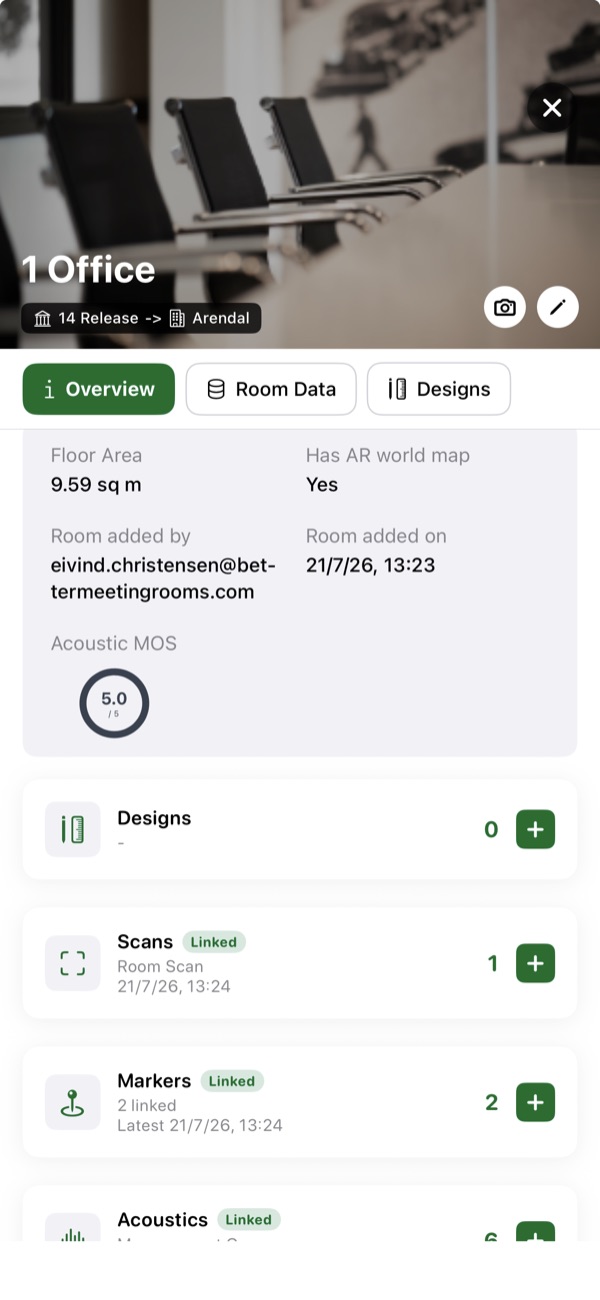
The MOS score is now always shown on the Room Overview page — using the linked measurement when available, otherwise the latest one.
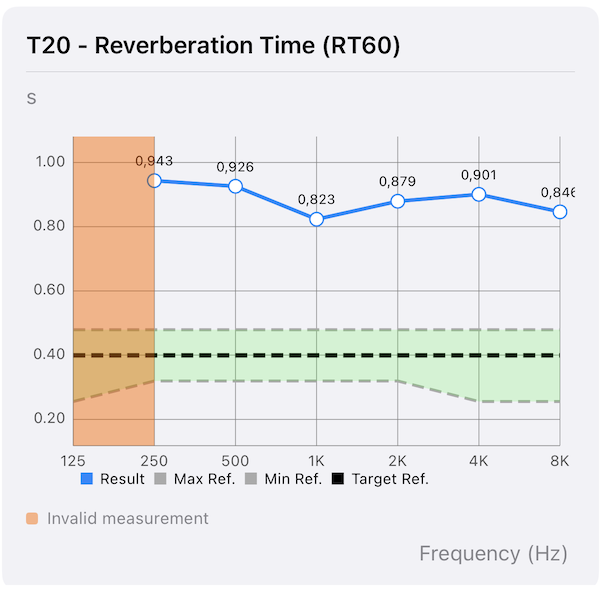
Acoustics — Cleaner T20 (RT60) chart
The T20 (RT60) graph now only plots reverberation times the backend considers valid, so unreliable bands do not distract from the useful data. Fewer misleading spikes; the shape of the curve is easier to read at a glance. Bands that were excluded are shaded and labelled Invalid measurement.
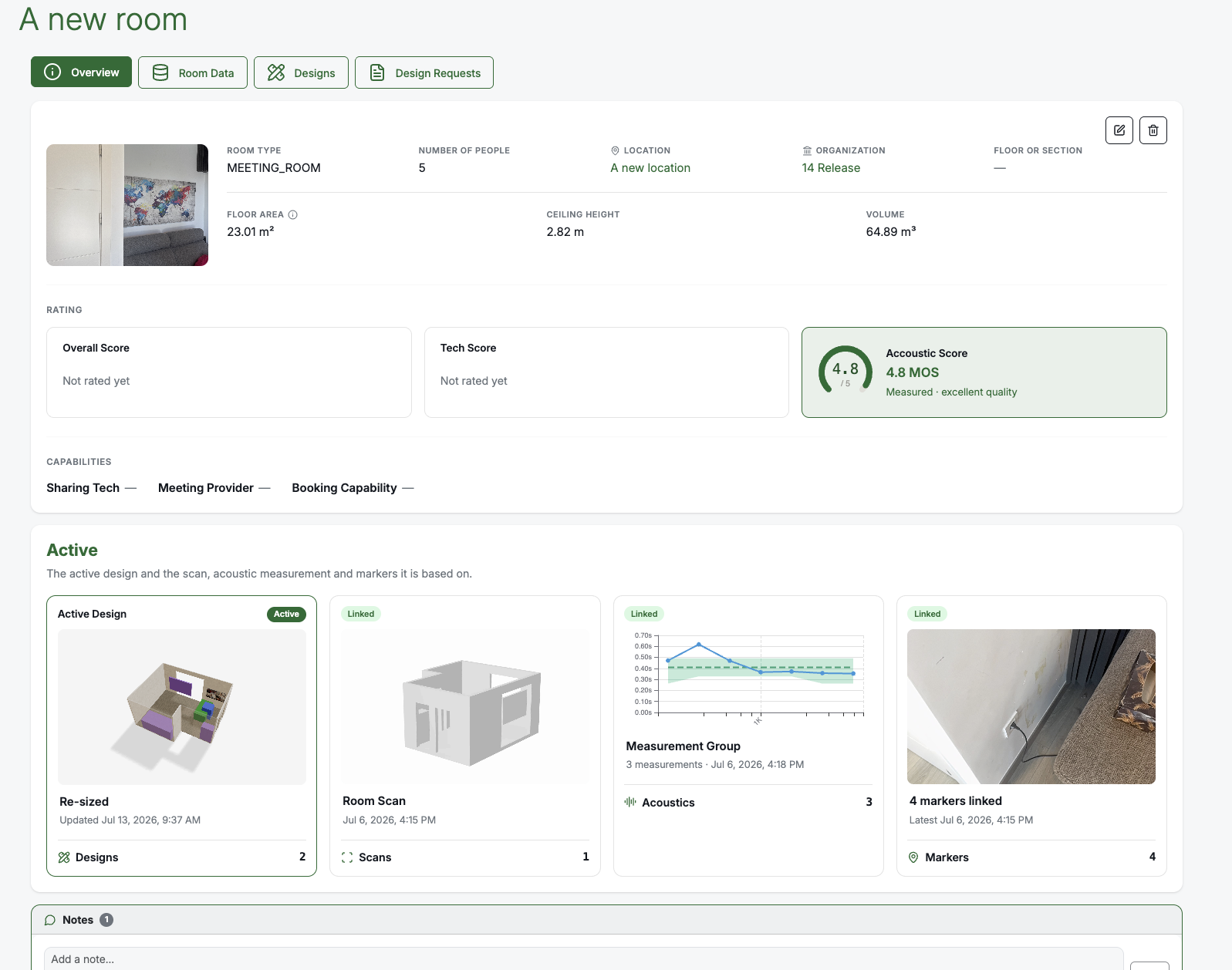
New Room Overview
The Room Overview page has got an overhaul with a new design and more information — room details, ratings, and capabilities at a glance, plus an Active section previewing the active Design and the linked scan, acoustic measurements, and markers it is based on.
Improved marker viewing
Working with markers in a room is now faster:
- Move easily from one marker view to the next.
- View all markers in the room at the same time.
- Marker options are available from the top menu.
New user onboarding on the Web
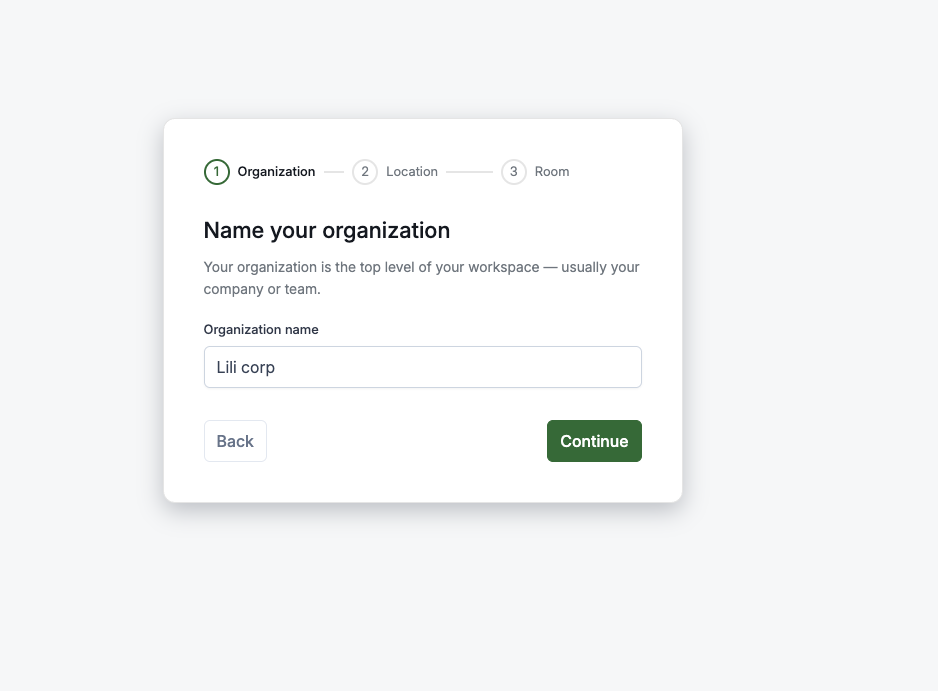
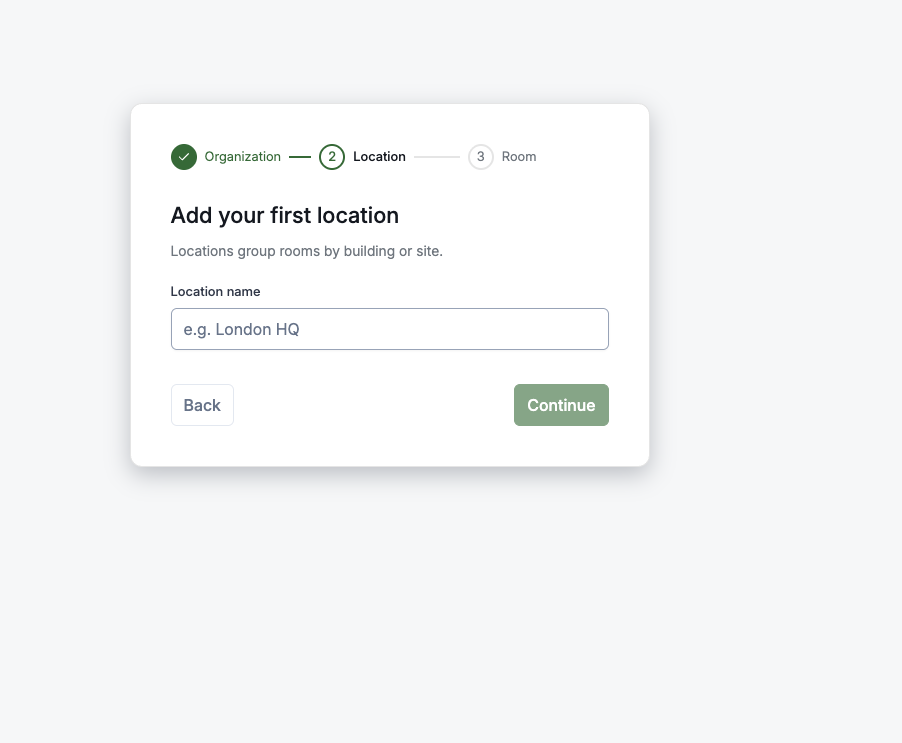
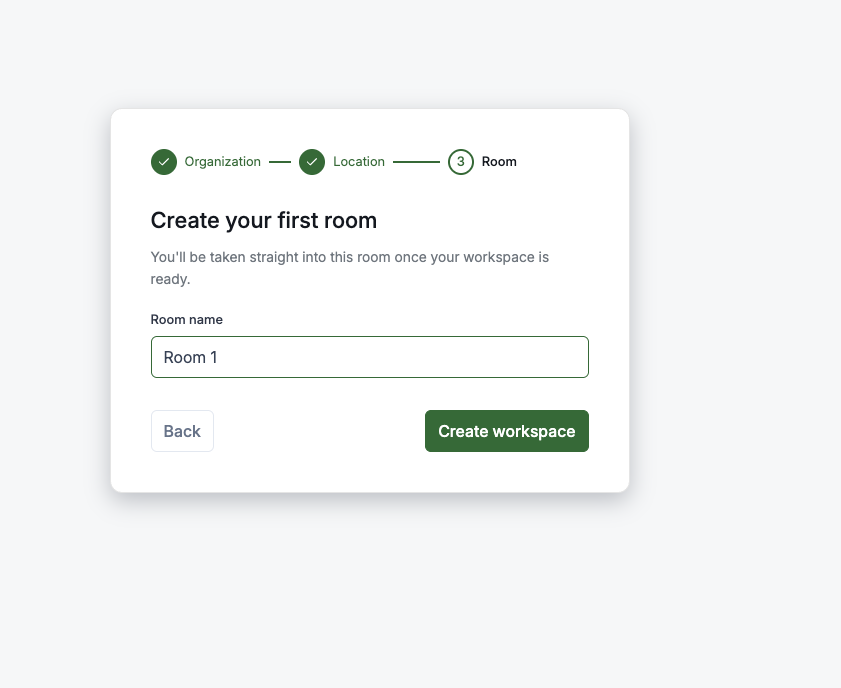
New user onboarding is now available from the Web. Users who sign up without an invitation are guided through creating their first Organisation, Location, and Room — landing directly in their new workspace instead of an empty experience.
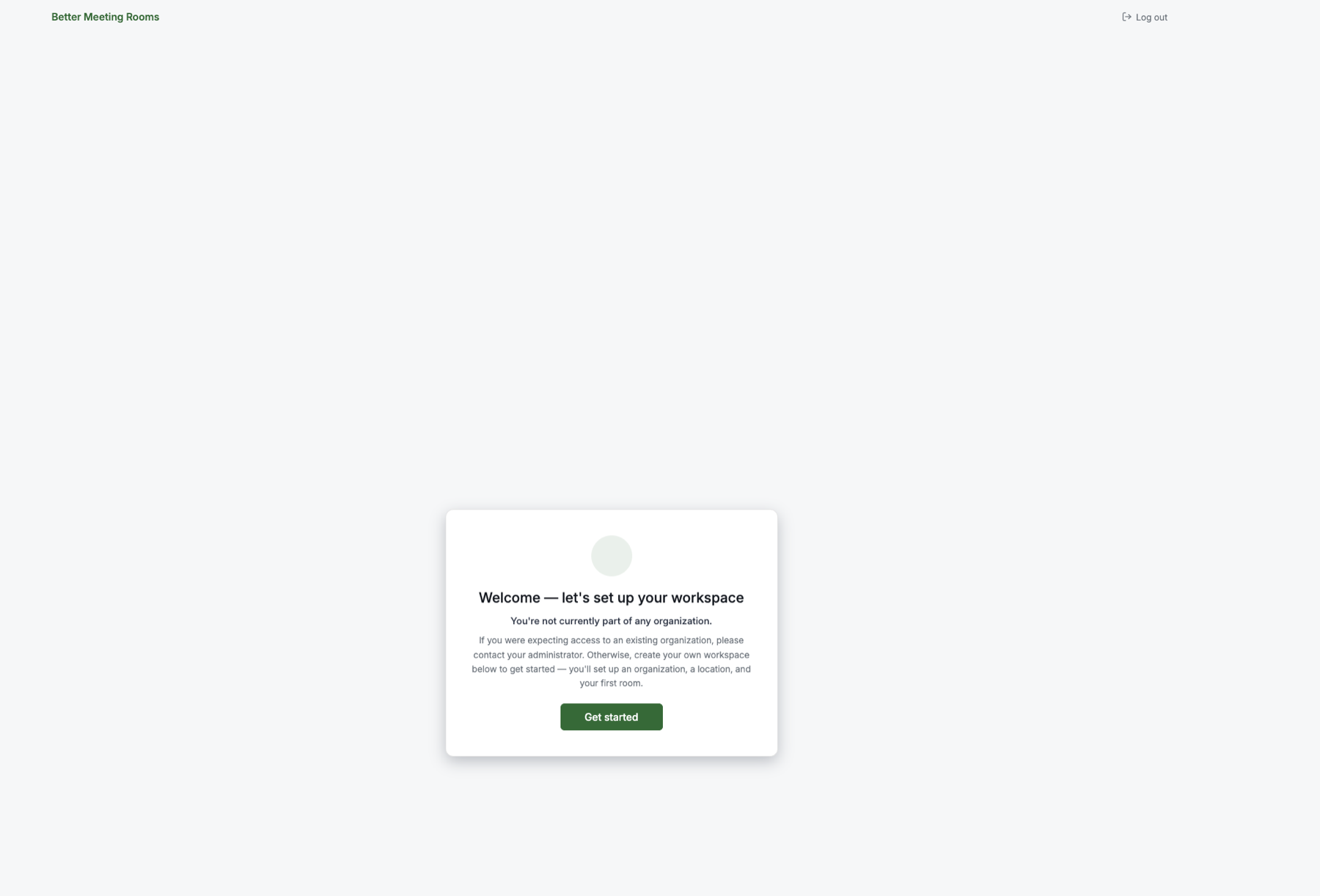
A three-step wizard walks the user through the setup:
BMR Mobile (iPhone / iPad)
Room view and data improvements
- Newly created rooms are shown at the top of the room list.
- The active Design and the linked scan, markers, and acoustic measurement are now clearly marked.
- Designs can now be deleted from inside the Room view.
- A web-only message is now shown for VRC designs.
Improved acoustic measurement flow
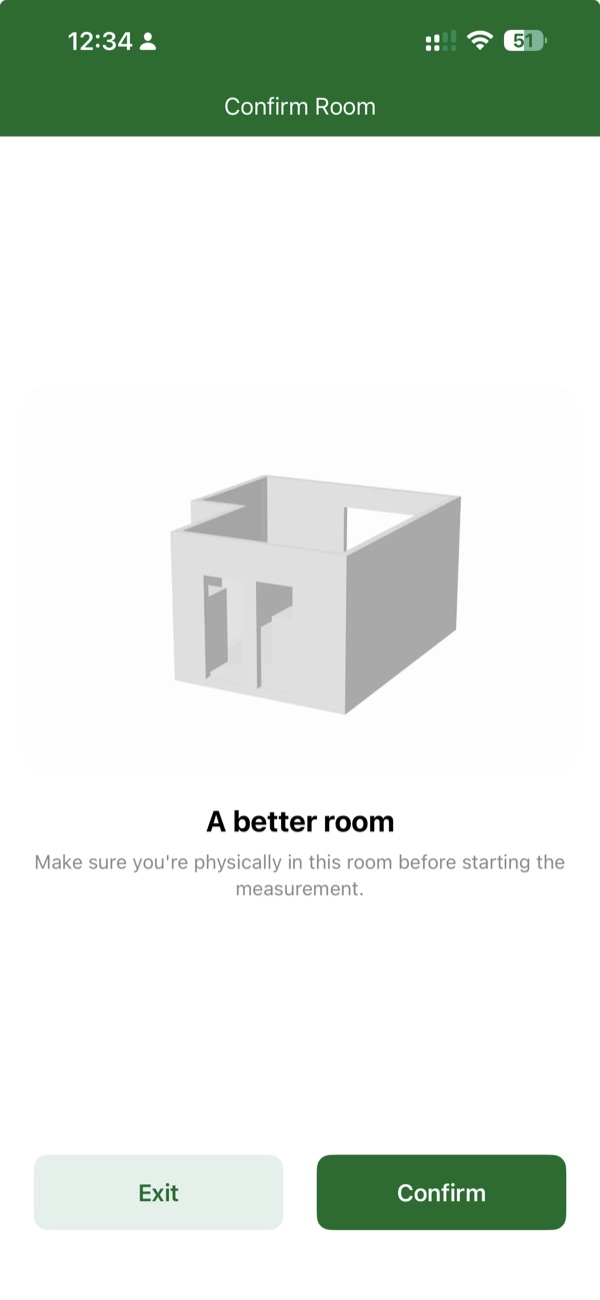
The acoustic measurement flow now anchors every measurement to the right room and the right position:
- At the start, a Confirm Room pop-up with the room's scan thumbnail lets you verify which room you are in before starting the measurement. If the thumbnail does not match where you actually are, Exit and open the right room first.
- During the process, updated room detection accurately pinpoints the location of the speaker and the measurement points within the room — powering the new measurement positions view on the Web.
See when BMR Mobile recognises your room
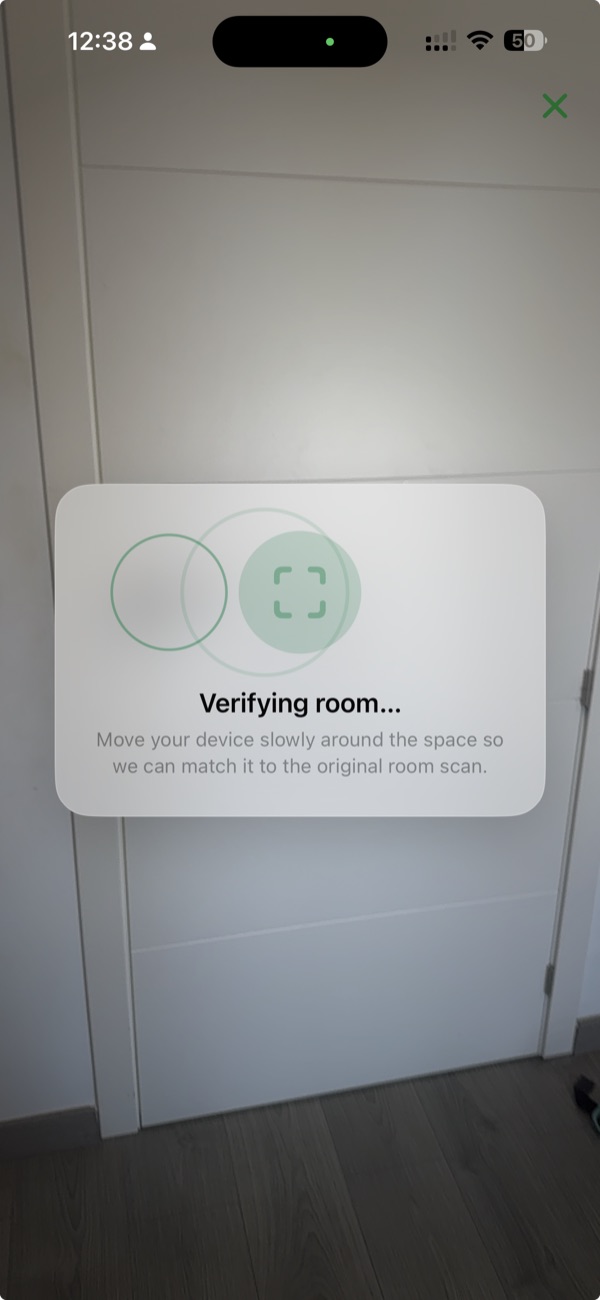
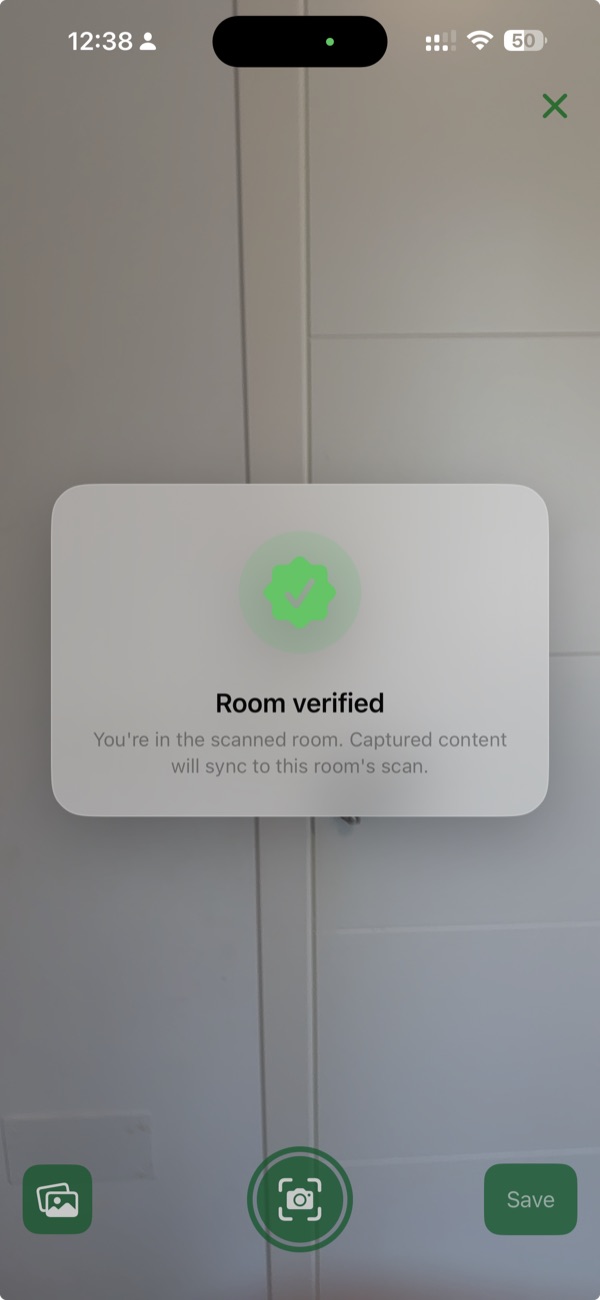
When you start a new AR Design, add a new Marker, or run a new Acoustic Measurement in a scanned room, BMR Mobile now relocalizes against the original scan first — so whatever you capture is anchored to the correct spatial position in the room. You see Verifying room… while it looks, then Room verified once relocalization succeeds. If BMR Mobile cannot find the room, you can Retry or Continue without verification.
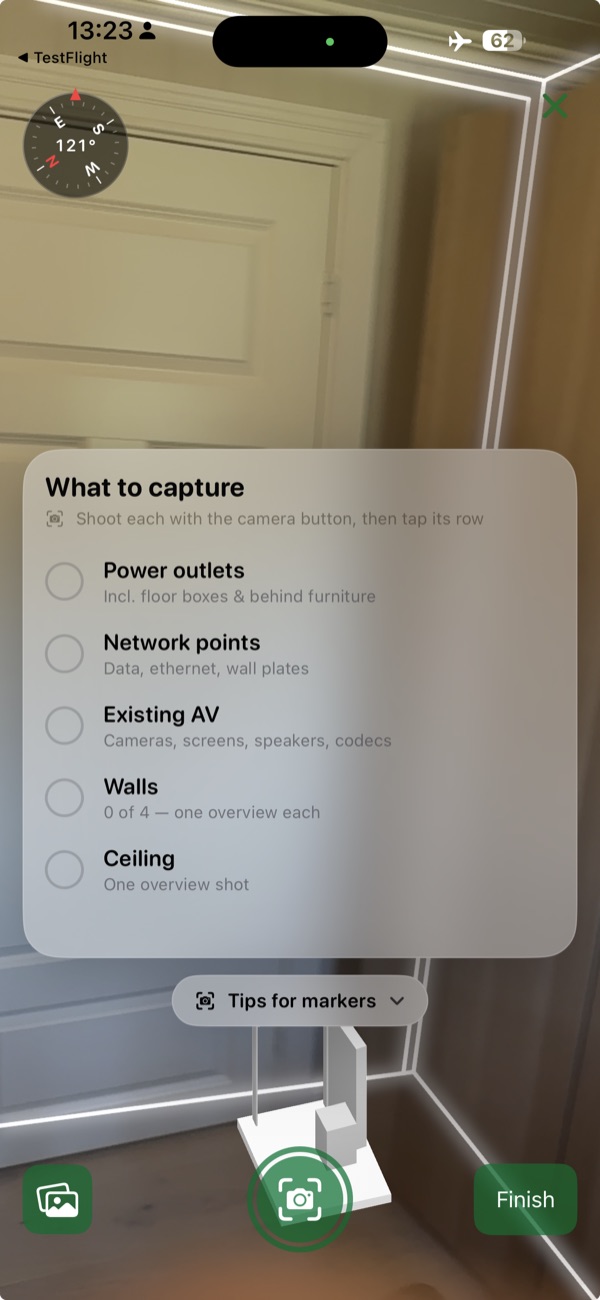
Marker checklist when scanning
A marker checklist now guides you while scanning, helping ensure all key elements of the room are captured before you finish — power outlets, network points, existing AV, walls, and ceiling.
Ambient noise on impulse measurements
Balloon and impulse measurements now surface ambient noise alongside the impulse result — bringing them in line with the sweep flow so you have the same context for interpreting the number regardless of the method.
Notes on grouped acoustic measurements
You can now add and edit notes on a group of related acoustic measurements — not just on individual ones. Useful when a bundled three-position measurement shares a single story that belongs at the group level rather than repeated on each position.
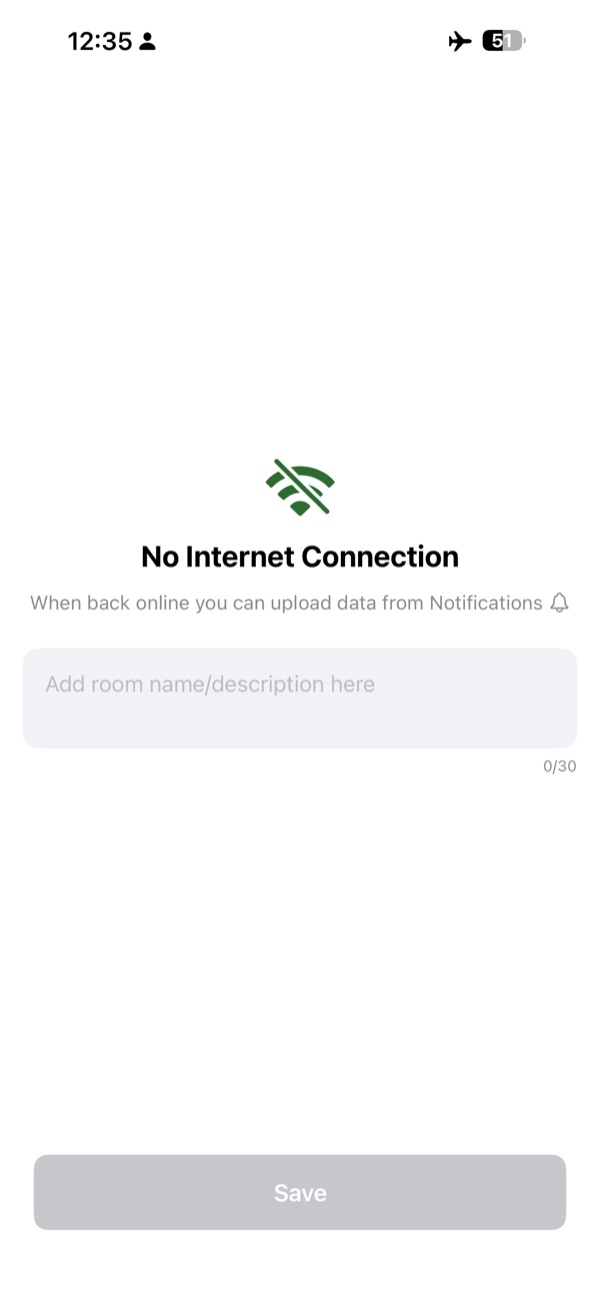
Better offline support
- New information and guidance when working in offline state.
- Improved offline acoustic flow across scan, acoustics, and markers — including adding notes and upload feedback.
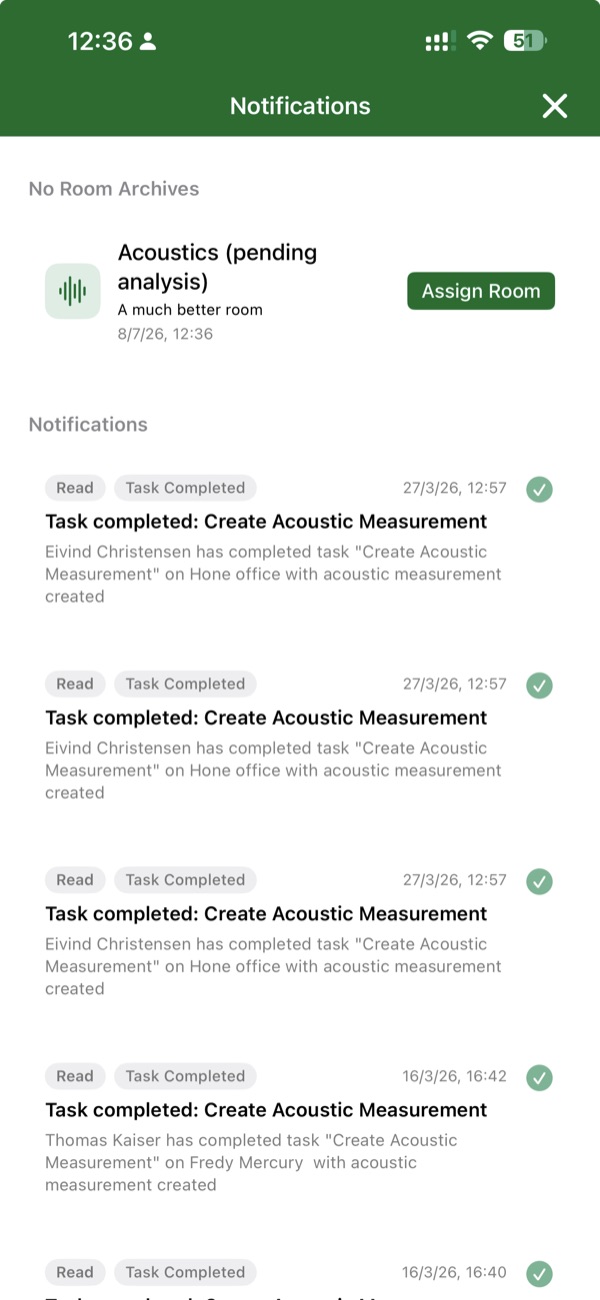
- Full acoustic measurements — including the three-position guided flow — now work without the network. Add a short note describing where you took the measurement, and it queues up in the Notifications tab. When you are back online, upload each measurement individually and assign it to the right room.
Notifications reflect real state
The bell badge now counts everything you actually need to act on — unread notifications, tasks, pending no-room archives, failed uploads, and incomplete acoustic measurements. When the badge is 0, there is nothing waiting for you.
Onboarding flow for new users
New users are now guided through an onboarding flow when opening BMR Mobile for the first time. The flow mirrors the Web onboarding — users signing up without an invitation are guided through creating their first Organisation, Location, and Room, right from their iPhone or iPad.
End of Release Notes